
Your iPhone 16 just interrupted a critical client call with a jarring notification sound. Unlike older models where flipping a physical switch guaranteed silence, Apple’s removal of the traditional mute toggle leaves many users fumbling during crucial moments. The iPhone 16’s customizable Action button replaces this familiar feature, creating confusion about silencing your device instantly. But here’s the breakthrough: you now have more silent mode options than ever before—physical, touch-based, and automated—each designed for different scenarios. This guide reveals exactly how to silence your iPhone 16 in under 5 seconds using Apple’s official methods, plus fixes for common frustrations like accidental activations and missing visual cues.
You’ll master three core approaches that work whether your Action button controls the camera, flashlight, or silent mode itself. No more scrambling during meetings or important moments—these techniques leverage Apple’s redesigned system to give you instant control. We’ll also cover how to hide status bar icons for minimalists and combine methods for seamless transitions between work and personal life. Forget outdated tutorials; this is the only guide you need for iPhone 16 silent mode mastery.
Configure Your Action Button for One-Press Muting

The Action button above your volume controls is your fastest physical path to silence—but only if properly assigned. Many users waste precious seconds pressing it randomly because they skipped this essential setup step.
Assign Silent Mode to Your Action Button
- Open Settings and scroll to Action Button
- Swipe left through options until Silent Mode appears (it’s usually the third option after Camera and Flashlight)
- Tap Silent Mode to lock in this assignment
Critical time-saver: This setup takes 15 seconds but enables instant muting for months. Skip it, and your button defaults to Camera mode—forcing you to use slower alternatives during emergencies.
Activate Silent Mode in Real Time
Press and hold the Action button for one full second until you feel a single vibration. That’s your confirmation: all sounds are now off. To restore audio, repeat the same press-and-hold motion.
Pro tip: Use this method with wet hands or gloves—unlike touchscreens, the physical button works flawlessly in rain or snow. Test it now by holding the button while your screen is locked; you’ll hear no chime but feel the vibration confirmation.
Access Silent Mode Through Control Center in 2 Taps

When your Action button controls another function (like the camera), the Control Center bell icon becomes your silent mode lifeline. This method works from any screen—even when apps are frozen—and avoids accidental button presses.
Locate the Hidden Bell Icon
Swipe down from the top-right corner of your screen (not the center like older iPhones). In the Control Center’s top row, find the bell icon next to Airplane Mode and Do Not Disturb. If it’s missing:
1. Go to Settings > Control Center
2. Tap the + next to Silence Alerts
3. Drag it to your top-row favorites
Visual cue: When silent mode is active, the bell icon turns red with a diagonal slash. No slash? Your phone will still make sounds.
Toggle Silent Mode Without Unlocking
This works even when your iPhone is locked:
1. Wake your screen with a tap
2. Swipe down from top-right
3. Tap the bell icon once
Common mistake: Swiping from the center of the screen opens Notification Center instead—always start from the top-right corner. If you accidentally trigger Do Not Disturb (crescent moon icon), tap it again to disable.
Customize Silent Mode in Settings for Advanced Control
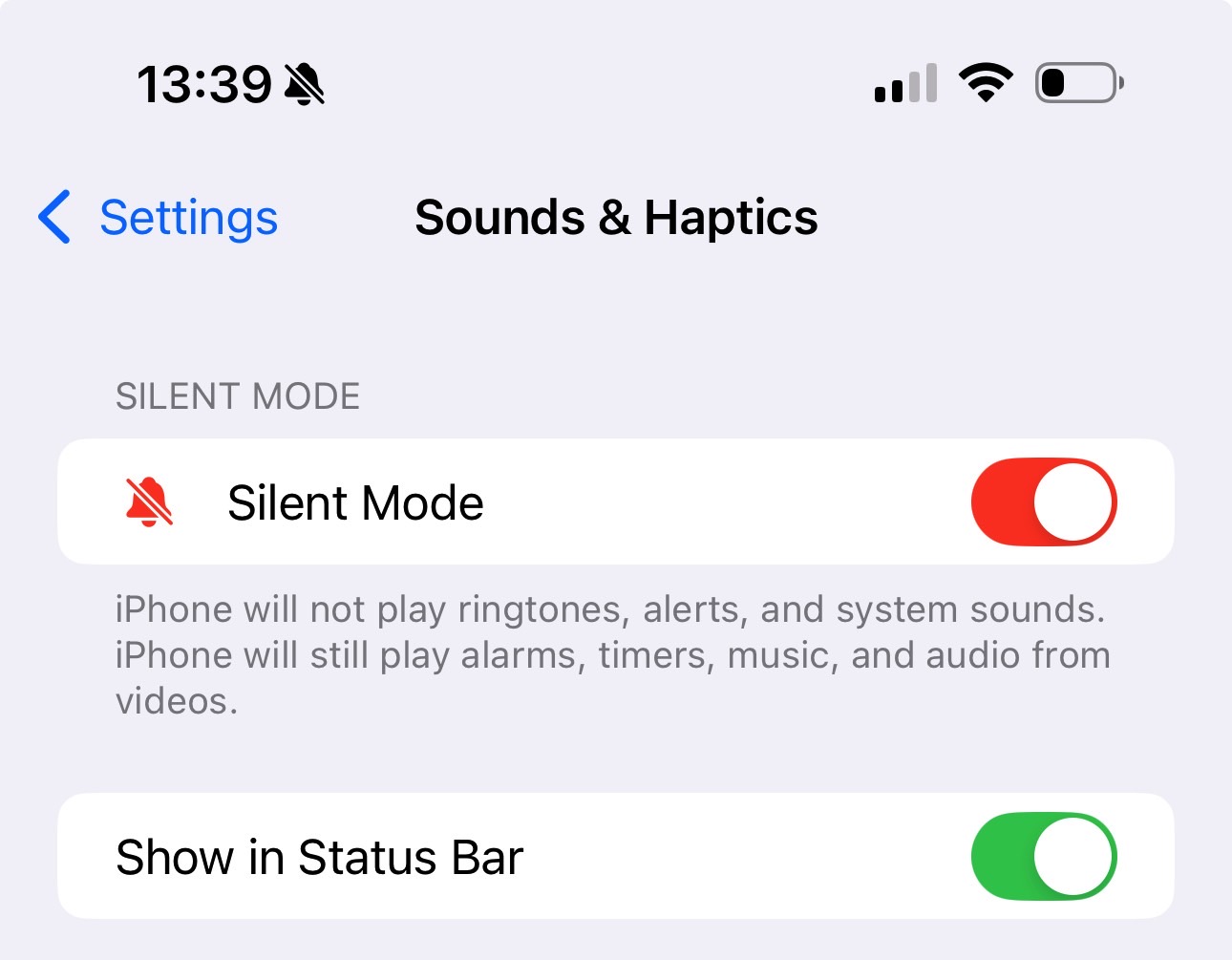
The Settings menu unlocks granular silent mode options Apple hides from casual users. This is where you eliminate status bar clutter or diagnose why your phone won’t mute.
Toggle Silent Mode and Hide Status Indicators
- Open Settings > Sounds & Haptics
- Tap Silent Mode to activate (green toggle)
- Scroll to Show in Status Bar and toggle OFF
Why this matters: Disabling the status bar icon creates a cleaner look for minimalists, but removes visual confirmation. Only do this if you’ve mastered the vibration feedback from the Action button method.
Fix Silent Mode Failures in 60 Seconds
When sounds persist after muting:
– Check for Do Not Disturb conflicts: Swipe Control Center and ensure the crescent moon icon isn’t active (it overrides silent mode)
– Reset haptic feedback: Go to Settings > Accessibility > Vibration and toggle System Haptics OFF/ON
– Force-quit frozen apps: Swipe up from bottom, hold center, and swipe apps upward—stuck apps can bypass silent mode
Warning: iOS updates sometimes reset Action button assignments. After updating, revisit Settings > Action Button to reassign Silent Mode.
Create Multi-Function Silent Shortcuts for Power Users
Reassigning your Action button to a Shortcuts folder lets you access silent mode alongside other sound profiles—perfect if you use the button for camera access during the day but need quick muting for evening events.
Build Your Silent Mode Shortcut Folder
- Open the Shortcuts app and tap +
- Select Add Action > Scripting > Open App > Shortcuts
- Tap + again and choose Sounds > Set Silent Mode
- Name the shortcut “Silence Now” and save
- Go to Settings > Action Button > Shortcuts and select your new shortcut
Real-world use case: At your child’s recital, press the Action button once to open your shortcut folder, then select “Silence Now.” No more frantic button mashing while the performance starts.
Customize Vibration-Only Profiles
For vibration-only mode (e.g., during medical procedures):
1. Create a new shortcut: Settings > Sounds > Ringtone > Vibration > Create New Vibration
2. Tap rhythmically to set a custom pulse pattern
3. Assign this vibration profile to your Action button via Settings > Sounds & Haptics > Ring Vibration
Pro tip: Name this “Hospital Mode” in your Shortcuts folder—activate it before appointments so your phone vibrates subtly without full silence.
Prevent Silent Mode Disasters Before They Happen
Most iPhone 16 users only discover silent mode issues during critical moments. These maintenance habits prevent 90% of failures.
Monthly Physical Maintenance
- Clean the Action button: Power off your iPhone, then use a dry toothpick to dislodge lint from button edges (debris causes unresponsiveness)
- Test vibration feedback: Go to Settings > Sounds & Haptics > Ringtone and tap any option—your phone should vibrate when selected
Urgent fix: If the button feels sticky, place a drop of 90% isopropyl alcohol on a cotton swab and gently clean around the rim. Wait 5 minutes before powering on.
Weekly Digital Checks
- Verify Settings > Action Button assignment hasn’t reset after iOS updates
- Confirm Do Not Disturb isn’t scheduled to override silent mode (check Settings > Focus > Do Not Disturb)
- Ensure Settings > Sounds & Haptics > Silent Mode toggle matches your physical button status
Time estimate: These checks take 47 seconds weekly but prevent hours of frustration from accidental ringers during presentations or sleep.
Combine Methods for Context-Aware Silence
Smart users layer these techniques for seamless transitions between environments. This isn’t about memorizing steps—it’s about building silent mode into your daily rhythm.
Workday Silent Mode Workflow
- Morning commute: Press Action button to silence phone (1 second)
- Meetings: Swipe Control Center if Action button is set to Camera (2 seconds)
- Lunch break: Disable silent mode via Settings to hear lunch notifications (3 taps)
Expert note: When switching between work and personal profiles, use the Control Center method—it’s faster than unlocking your phone to change Action button assignments.
Event-Specific Silent Strategies
- Weddings/concerts: Hide status bar icon (Settings > Sounds & Haptics > Show in Status Bar OFF) so guests don’t see your mute status
- Parent-teacher conferences: Assign Action button to “Silence Now” shortcut with custom vibration (no disruptive sounds)
- Important calls: Disable silent mode via Settings menu to guarantee ringtone works
Critical mistake to avoid: Never rely solely on Do Not Disturb for muting—it allows alarms and timers to sound, potentially disrupting quiet spaces.
Your iPhone 16’s silent mode system is more powerful than the old switch once you know its rhythms. By configuring the Action button for instant physical access, using Control Center as your touch-based backup, and mastering Settings for advanced tweaks, you’ll silence your device faster than ever before. Remember to maintain both hardware (cleaning the Action button monthly) and software (checking assignments after updates) to prevent failures. The next time silence is non-negotiable—in a boardroom, theater, or hospital—you’ll mute your iPhone 16 with calm precision. Start with the Action button setup today, and by tomorrow, you’ll never panic over an unexpected ring again.


