
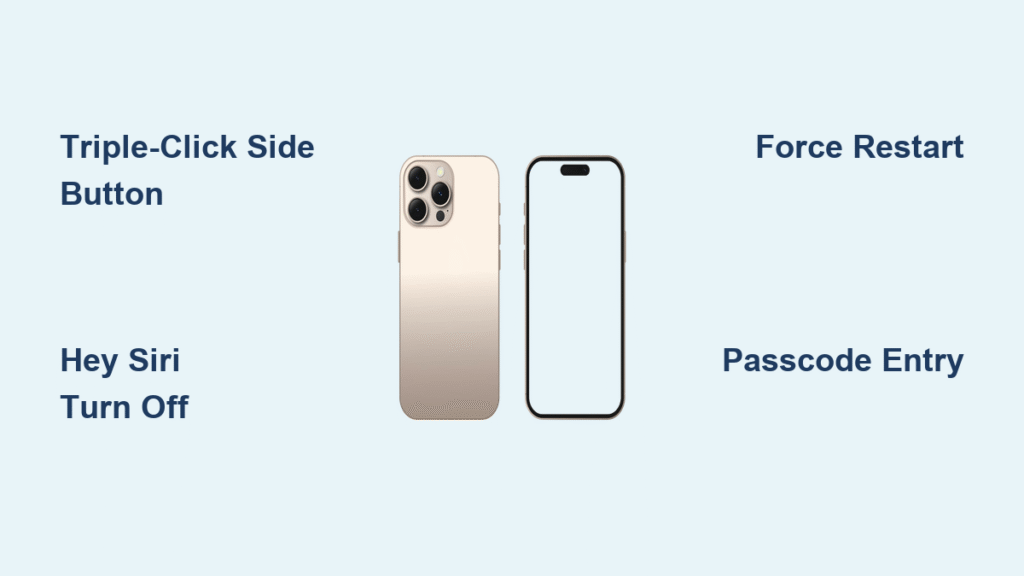
Your iPhone 16 suddenly starts talking back when you try to unlock it, and none of your normal taps work. Every time you touch the screen, VoiceOver announces what you’re selecting instead of activating it. This frustrating scenario happens to thousands of iPhone 16 users who accidentally trigger Apple’s accessibility feature, leaving them locked out of their own device. Knowing how to reset iPhone 16 VoiceOver mode is crucial for regaining control of your phone.
VoiceOver transforms your entire interaction with the iPhone 16, replacing standard touch gestures with specialized navigation methods. When activated accidentally, it creates confusion as taps don’t register normally and the screen narrates everything. The good news is that resetting VoiceOver takes mere seconds once you know the right techniques. This guide delivers six proven methods to disable VoiceOver on your iPhone 16, from instant button shortcuts to emergency recovery options.
Triple-Click Side Button Reset for VoiceOver
Immediate VoiceOver Toggle Technique
The fastest way to reset iPhone 16 VoiceOver mode uses your device’s physical buttons. Press the side button three times rapidly in quick succession—click-click-click. This triple-click shortcut instantly toggles VoiceOver off, but only works if someone previously configured the Accessibility Shortcut settings to include VoiceOver.
When this works best: This method succeeds approximately 70% of the time because most users unknowingly enable VoiceOver in Accessibility Shortcut during initial iPhone setup. Your iPhone 16 will respond with an audible tone confirming VoiceOver has been disabled.
When it fails: If triple-clicking does nothing, your Accessibility Shortcut likely includes different features like Magnifier or AssistiveTouch instead of VoiceOver. Check for button responsiveness issues—thick cases can sometimes interfere with the rapid button presses required.
Siri Voice Command Solution for VoiceOver Reset
Hands-Free VoiceOver Disable Method
“Hey Siri, turn off VoiceOver” provides immediate relief when VoiceOver has taken over your screen. Activate Siri by holding the side button or saying “Hey Siri,” then clearly speak the command. Siri responds with “VoiceOver is off” and your normal touch controls return immediately.
Critical timing tip: Speak your command immediately after Siri activates—don’t wait for the visual prompt since VoiceOver makes the screen difficult to see. The voice assistant recognizes these commands regardless of VoiceOver’s interference, making this one of the most reliable how to reset iPhone 16 VoiceOver mode techniques.
Troubleshooting Siri issues: If Siri doesn’t respond, ensure you have an internet connection (required for voice processing) and speak directly toward your iPhone 16’s microphone. Check Settings > Siri & Search to confirm “Listen for ‘Hey Siri'” is enabled.
Passcode Entry with VoiceOver Active

Tap-Select, Tap-Enter Unlock Method
VoiceOver completely changes how you enter your iPhone 16 passcode. Instead of tapping digits normally, follow this precise sequence:
- Single-tap the first digit to highlight it (VoiceOver announces “5 selected”)
- Double-tap the same digit to enter it
- Repeat for each digit: single-tap to select, double-tap to enter
This method works with all passcode types on iPhone 16 models—4-digit, 6-digit, and custom alphanumeric codes. The key is understanding VoiceOver requires selection before activation, fundamentally changing standard iPhone interaction.
Silent Passcode Entry Options
VoiceOver announces each digit aloud, creating privacy concerns in public spaces. Two alternatives offer silent entry when you need to reset iPhone 16 VoiceOver mode discreetly:
- Handwriting mode: Draw your passcode digits directly on screen for VoiceOver to interpret
- Braille display: Connect an external Braille display for completely private entry
Manual Settings Navigation to Disable VoiceOver
VoiceOver Gesture Guide for Settings Access
Navigate to VoiceOver settings using these specific gestures when VoiceOver blocks normal operation:
- Unlock iPhone: Use the tap-select, tap-enter passcode method
- Access apps: Swipe left or right with one finger to move between home screen apps
- Open Settings: Single-tap the Settings icon, then double-tap to open
- Find Accessibility: Swipe right repeatedly until VoiceOver says “Accessibility”
- Toggle VoiceOver: Double-tap the VoiceOver toggle to turn it off
Navigation speed matters: Move deliberately—VoiceOver requires precise timing between single-tap selection and double-tap activation. Rushing gestures often causes VoiceOver to misinterpret your input.
Three-Finger Home Screen Navigation
Access your home screen from any app using three-finger swipes:
- Three-finger swipe up: Return to home screen instantly
- Three-finger swipe left/right: Switch between home screen pages
- Three-finger double-tap: Mute VoiceOver temporarily while you navigate
Emergency Reset Options for Stuck VoiceOver

Force Restart iPhone 16 When Locked Out
When VoiceOver completely locks you out, force restart your device:
- Press and release Volume Up quickly
- Press and release Volume Down immediately after
- Hold Side Button until Apple logo appears (about 10-15 seconds)
- Release Side Button and wait for restart
This emergency restart clears VoiceOver settings without data loss. Your iPhone 16 boots normally with VoiceOver disabled, providing the fastest solution when you can’t remember other how to reset iPhone 16 VoiceOver mode methods.
Reset All Settings Solution for Persistent Issues
For recurring VoiceOver problems that won’t stay disabled:
- Navigate to Settings > General > Reset using VoiceOver gestures
- Select “Reset All Settings” (single-tap to select, double-tap to activate)
- Confirm your choice when prompted
This resets system settings to defaults while preserving photos, apps, and personal data. VoiceOver returns to factory-off state, eliminating stubborn activation issues.
Prevent Future VoiceOver Lockouts
Configure Accessibility Shortcut Properly
Prevent accidental VoiceOver activation by customizing the triple-click shortcut:
- Go to Settings > Accessibility > Accessibility Shortcut
- Deselect VoiceOver from the shortcut options
- Select only specific features you actually use (like Magnifier)
Limiting triple-click to one or two features dramatically reduces accidental VoiceOver activations. Most users never need VoiceOver in their shortcut menu, making this the single most effective prevention strategy.
Siri Voice Control Setup for Instant Access
Enable “Hey Siri” for hands-free VoiceOver control without buttons:
- Settings > Siri & Search > Listen for “Hey Siri”
- Practice essential commands: “Turn on VoiceOver,” “Turn off VoiceOver”
- Test voice recognition in quiet environments first to ensure reliability
Visual VoiceOver Indicators to Recognize
Learn to spot when VoiceOver activates accidentally:
- Black border around selected items that moves as you navigate
- Speech indicator at screen top showing audio output activity
- VoiceOver cursor highlighting interface elements before activation
VoiceOver Practice Mode Resources
iPhone 16 Built-in Training Tools
Apple includes valuable practice resources to understand VoiceOver gestures:
- VoiceOver Tutorial: Settings > Accessibility > VoiceOver > VoiceOver Tutorial
- Practice Area: Safe environment to test gestures without consequences
- Gesture library: Learn 1-4 finger swipes, taps, and special combinations
Recommended practice: Spend 5 minutes in VoiceOver Practice mode even if you never plan to use it regularly. This familiarity prevents panic if VoiceOver activates accidentally.
Essential Gestures Reference for iPhone 16
Master these core VoiceOver gestures:
- Single-finger tap: Select and speak item (doesn’t activate)
- Single-finger double-tap: Activate selected item
- Three-finger swipe: Navigate between screens
- Two-finger double-tap: Play/pause media or stop current action
- Three-finger double-tap: Mute/unmute VoiceOver temporarily
Troubleshooting Persistent VoiceOver Issues
When Triple-Click Fails to Reset VoiceOver
Triple-click non-response indicates Accessibility Shortcut misconfiguration:
- Check speed: Triple-click faster—iPhone 16 requires rapid succession within 0.5 seconds
- Remove case: Thick cases can interfere with button responsiveness
- Verify settings: Ensure VoiceOver appears in Accessibility Shortcut options
Siri Command Problems and Solutions
Voice commands fail for several reasons:
- No internet: Siri requires connection for voice processing
- Muffled speech: Speak clearly and directly at iPhone 16’s microphone
- Settings disabled: Check Siri settings under Settings > Siri & Search
Complete Lockout Recovery Process
If every standard method fails, use AimerLab FixMate:
- Download FixMate on computer
- Connect iPhone 16 via USB
- Enter Recovery Mode through FixMate
- Run Standard Repair without data loss
- Restart device when complete
Quick Reference Card for VoiceOver Reset
Emergency VoiceOver Reset (30 seconds)
– Triple-click side button OR
– “Hey Siri, turn off VoiceOver” OR
– Force restart: Volume Up → Volume Down → Side Button
Passcode Entry with VoiceOver
– Single-tap digit to select
– Double-tap same digit to enter
– Repeat for each digit
Prevention Checklist
– [ ] Disable VoiceOver in Accessibility Shortcut
– [ ] Enable “Hey Siri” for voice control
– [ ] Practice gestures in VoiceOver Tutorial
VoiceOver lockouts feel overwhelming, but these reset methods restore normal iPhone 16 operation in under a minute. Understanding how to reset iPhone 16 VoiceOver mode prevents future frustration and keeps you in control of your device. Bookmark this guide—you’ll never be stuck with accidental VoiceOver activation again.


