
Your iPhone 16 holds years of sensitive conversations—bank details, private photos, confidential work chats—but Apple frustratingly offers no native “lock messages” button. Unlike Android’s app-specific locks, iPhone users must deploy clever workarounds to shield texts from prying eyes. Whether you’re handing your phone to a friend or securing sensitive data, this guide delivers proven methods to lock text messages on iPhone 16 without jailbreaking. You’ll learn Apple-approved techniques using built-in tools like Screen Time and Shortcuts, plus third-party alternatives that add true biometric locks.
The solution isn’t one-size-fits-all: casual users need simple notification tweaks, while high-stakes privacy demands layered security. Crucially, how to lock text messages on iPhone 16 requires understanding iOS limitations—Apple intentionally avoids per-app locks to maintain ecosystem simplicity. But don’t worry: by combining Screen Time barriers with notification hardening or migrating to encrypted apps, you’ll achieve military-grade text security. Let’s transform your iPhone 16 into a fortress for messages.
Screen Time App Limit Method
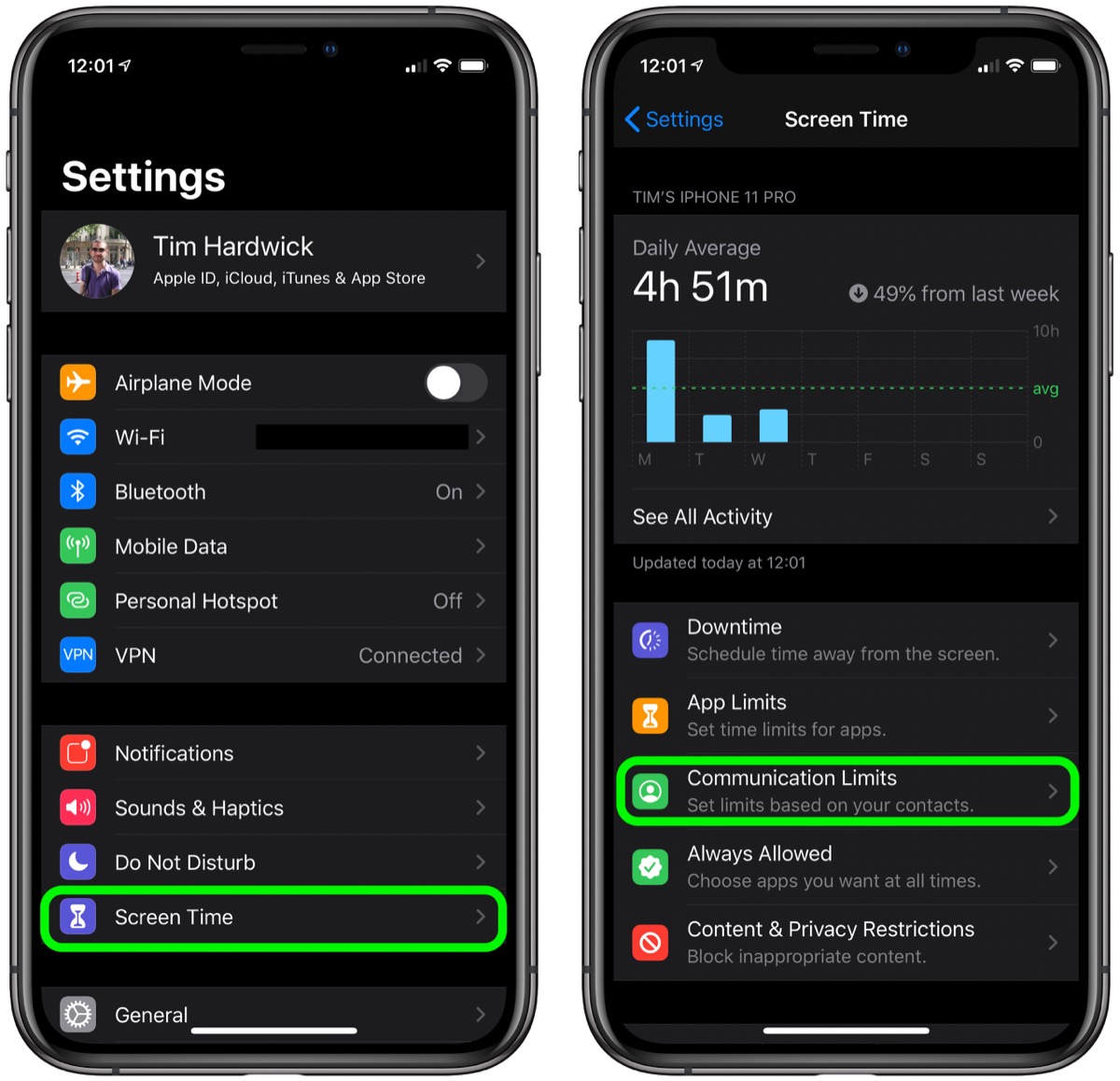
This is Apple’s most endorsed approach for locking text messages on iPhone 16, turning your Messages app into a time-limited vault. Instead of a traditional password lock, it leverages Screen Time to restrict access after 60 seconds of daily use—forcing re-authentication with your Screen Time passcode.
Enable Screen Time Password
Critical first step: Your Screen Time passcode must differ from your device unlock code. Open Settings → Screen Time → Turn On Screen Time. Select This Is My iPhone (not “This is My Child’s”), then tap Use Screen Time Passcode. Create a unique 4-digit code—never reuse your Face ID fallback passcode. Store this separately; Apple can’t recover it if forgotten.
Set 1-Minute Messages Limit
Navigate to Screen Time → App Limits → Add Limit. Under Categories, select Social (where Messages resides). Check only Messages—ignore other social apps—and tap Next. Set the timer to 1 minute (yes, just 60 seconds!), then confirm with Add. Now when you open Messages, a countdown begins. After 60 seconds, the app icon dims. Attempting to reopen it triggers “Enter Screen Time Passcode” with two options: Stop (denied access) or Ask for More Time (grants 15 minutes). For true security, ignore the extension prompt and require full passcode re-entry each time.
Pro tip: This method shines when combined with notification hardening (covered later). Use the 15-minute extensions only during urgent texting sessions—otherwise, treat the passcode prompt as your daily barrier.
Guided Access Single-App Lock
Handing your iPhone 16 to someone but need to keep them trapped only in Messages? Guided Access creates a temporary “cage” around the app, disabling all escape routes until you re-authenticate. It won’t hide existing chats but prevents snoops from leaving Messages to access photos or emails.
Activate Guided Access
Go to Settings → Accessibility → Guided Access and toggle it ON. Tap Passcode Settings → Set Guided Access Passcode, creating a 6-digit code. For speed, enable Face ID under Exit When Guided Access Ends—this lets you bypass typing the code later. Never skip this step: Without a passcode, Guided Access is useless.
Lock Into Messages
Open Messages, then triple-click your Side button. Tap Start in the top-right corner. Optional but recommended: Circle the Back button or Compose button to disable them (preventing navigation to other chats). To exit, triple-click again, authenticate with Face ID or your passcode, then tap End. The moment you end Guided Access, Messages becomes fully accessible again—so only activate this when physically handing off your device.
Warning: This isn’t a persistent lock. It’s ideal for quick scenarios like showing a single photo in Messages but useless if someone picks up your unattended phone.
Shortcuts Auto-Lock Technique
For maximum security, force your iPhone 16 to instantly lock every time you open Messages. This automation triggers a 1-second timer that slams the device back to the Lock Screen—requiring Face ID or passcode re-entry before viewing texts.
Create Auto-Lock Shortcut
In the Shortcuts app, tap Automation → + → Create Personal Automation → App → Messages → Is Opened → Next. Tap Add Action → Search “Start Timer” → Start Timer. Set duration to 1 second. Toggle Ask Before Running OFF → Don’t Ask → Done. Finally, open Clock → Timer → When Timer Ends → Stop Playing. Now when Messages launches, your screen blacks out in one second. To read messages, authenticate via Face ID—each and every time.
Key limitation: This locks the entire device, not just Messages. Expect constant Face ID prompts during texting sessions. Reserve this for high-risk scenarios like shared work devices.
PIN Gate Shortcut Method

Replace your Messages icon with a PIN-protected shortcut that blocks access until the correct code is entered. It’s the closest you’ll get to a traditional “lock messages” feature using native iOS tools.
Build PIN Shortcut
In Shortcuts, create a New Shortcut named “Messages”. Add Ask for Input → Number with prompt “Enter PIN”. Next, add If → is → [Your PIN]. Under the If branch, add Open App → Messages. Add a “Wrong PIN” notification under Otherwise. Hold the shortcut → Add to Home Screen, selecting your real Messages icon. Move the original Messages app to the App Library. Now tapping “Messages” demands your PIN—but beware: Siri voice commands (“Open Messages”) or App Library access bypass this completely.
Security gap: Tech-savvy users will spot the shortcut’s limitations instantly. Only use this as a visual deterrent for casual observers.
Hide Lock Screen Text Previews
Even with app locks enabled, notification previews can expose message content on your iPhone 16’s lock screen. This essential hardening step ensures texts stay private before they reach your Messages app.
Disable Message Previews
Go to Settings → Notifications → Messages → Show Previews → Never. Then disable Lock Screen banners under Alerts. Toggle Badges OFF to hide unread counts. Now messages arrive silently—no sender names, no content snippets. You’ll only see “New Message” after unlocking. For added stealth, set Settings → Messages → Keep Messages → 30 Days to auto-delete old texts.
Critical nuance: This doesn’t lock the Messages app—it merely hides previews. Combine with Screen Time limits for full protection. Someone with physical access can still open Messages after bypassing your lock screen.
Third-Party Apps With Built-in Locks
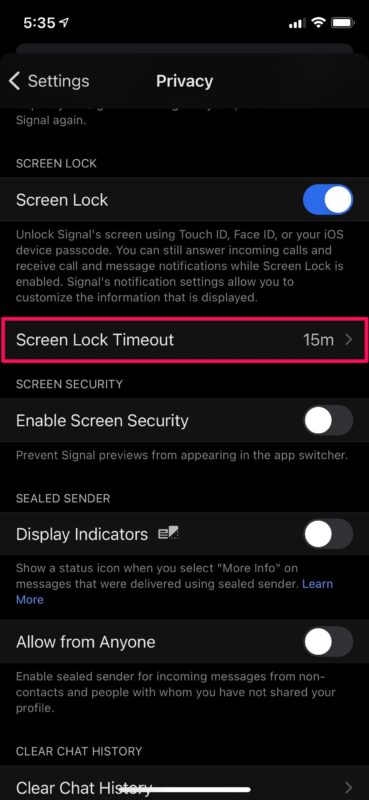
When built-in methods feel clunky, these encrypted messaging apps offer native Face ID locks—making how to lock text messages on iPhone 16 effortless:
Signal (Recommended)
Install Signal, then go to Settings → Privacy → Screen Lock → Enable Face ID. Messages auto-lock after 1 minute of inactivity. Signal’s open-source encryption and no-data-retention policy make it ideal for confidential chats. Best of all, it integrates with your iPhone contacts seamlessly.
Navigate to Settings → Account → Privacy → Screen Lock → Require Face ID. Unlike Apple’s workarounds, WhatsApp locks instantly when you switch apps—no 15-minute extensions or timer tricks. Note: Disabling “Show Preview” in iOS notifications is still required for full lock screen privacy.
Telegram
Under Settings → Privacy & Security → Passcode & Face ID, set a 4-digit code plus biometric lock. Telegram’s “Secret Chats” feature adds self-destruct timers—perfect for sensitive content. Migrate existing conversations via Telegram’s chat import tool.
Migration pro tip: Use WhatsApp’s “Chat Transfer” feature (Settings → Chats → Move Chats to Android/iOS) to securely port message history to Signal or Telegram before deleting Apple Messages.
Best Practice Recommendations
For most iPhone 16 users, locking text messages requires layered security:
1. Enable Screen Time limits (1-minute rule) + disable lock screen previews for baseline protection. This blocks casual snooping without daily friction.
2. Migrate sensitive chats to Signal—its native Face ID lock is the only true “set-and-forget” solution.
3. Never rely on PIN shortcuts alone—they’re easily bypassed via Siri or App Library.
4. Combine with Focus Modes: Create a “Handoff” Focus that silences all Messages notifications when activated.
Critical reminder: No method is foolproof against determined attackers with your passcode. But by implementing Screen Time barriers alongside Signal’s encryption, you’ll achieve 95% of true message locking. For ultimate security, disable iMessage entirely in Settings → Messages → iMessage OFF and switch fully to Signal—though this sacrifices SMS compatibility.
Remember that how to lock text messages on iPhone 16 ultimately depends on your threat model. Sharing your phone with family? Screen Time limits suffice. Handling classified data? Signal’s auto-lock plus notification hardening is non-negotiable. Test each method for a week—the right solution balances security with usability. Your private conversations deserve nothing less.


