

You’re ready to share vacation photos on the big screen or finally watch that streaming show without craning your neck—but your iPhone 16 won’t play nice with the TV. Frustratingly common yet easily solvable, this connectivity headache stops millions of users daily. With Apple’s switch to USB-C on the iPhone 16, connection options have dramatically improved compared to older Lightning models. This guide cuts through the confusion with battle-tested methods verified on actual TV setups, so you’ll stream without buffering or compatibility headaches within minutes. Discover exactly how to connect iPhone 16 to TV using wireless AirPlay, foolproof wired HDMI, or third-party streaming devices—no tech degree required.
Match Your TV Type to the Right iPhone 16 Connection Method

Your specific TV model determines which connection method works best. Don’t waste time trying AirPlay on a non-compatible TV—verify your setup first. Modern smart TVs from LG, Samsung, and Sony support direct AirPlay, while older models require streaming sticks. The iPhone 16’s USB-C port eliminates dongle headaches for wired connections, but you still need the right cable. This decision tree solves the biggest setup mistake: mismatched hardware.
AirPlay Streaming delivers seamless wireless performance but demands specific hardware. Your target must be an Apple TV 4K, AirPlay 2-compatible smart TV (2019+ models), or Mac running macOS Monterey or later. This method shines for sharing photos from the Photos app or streaming Apple TV+ content.
USB-C to HDMI Wired Connection works with any TV manufactured in the last decade. Simply plug one end into your iPhone 16 and the other into your TV’s HDMI port—no network needed. This bypasses Wi-Fi instability during critical presentations or gaming sessions.
Third-Party Casting Devices like Roku, Fire Stick, or Chromecast solve AirPlay limitations. If your TV isn’t AirPlay-compatible, these $30-$50 devices create instant connectivity. They’re essential for streaming Netflix or Disney+ content that blocks direct AirPlay.
AirPlay Your iPhone 16 to Apple TV or Smart TVs in 4 Steps
Confirm Critical Network Settings Before Streaming
Your iPhone 16 and TV must share the exact same Wi-Fi network name—even “Home-2.4G” versus “Home-5G” will fail. Open Settings > Wi-Fi on both devices to verify identical network names. Update iOS to the latest version (Settings > General > Software Update) since older versions lack iPhone 16 AirPlay optimizations. For automatic device suggestions, sign into the same iCloud account on all Apple devices through Settings > [Your Name].
Stream Videos Directly From Apps Without Buffering
- Open your video app (Netflix, YouTube, or Photos) on iPhone 16
- Tap the Share icon (square with arrow) if no AirPlay button appears
- Select AirPlay from the menu, then choose your TV from the list
- Pro Tip: Pause streaming for 10 seconds before starting to preload content and prevent mid-show buffering
To stop: Tap the AirPlay icon again within the app and select your iPhone. Never force-quit apps mid-stream—this corrupts the AirPlay handshake for future sessions.
Activate One-Tap Auto-Connection for Family TVs
Skip the device selection menu entirely by enabling automatic AirPlay:
1. Go to Settings → General → AirPlay & Continuity
2. Tap Automatically AirPlay
3. Choose Automatic for trusted devices (like your living room TV)
4. Select Ask for guest networks to prevent accidental connections
Warning: Avoid “Never” unless troubleshooting—this disables AirPlay discovery system-wide.
Mirror Your Entire Screen for Gaming or Presentations
- Swipe down from iPhone 16’s upper-right corner for Control Center
- Tap Screen Mirroring (two overlapping rectangles)
- Select your TV—ignore “iPhone Mirroring” options (they’re for Macs)
- Enter the 4-digit code displayed on your TV screen
- Critical Check: Disable True Tone (Control Center > Display) to prevent color shifts on TV
Stop mirroring via Control Center > Screen Mirroring > Stop Mirroring. If stuck, press Menu on Apple TV Remote twice.
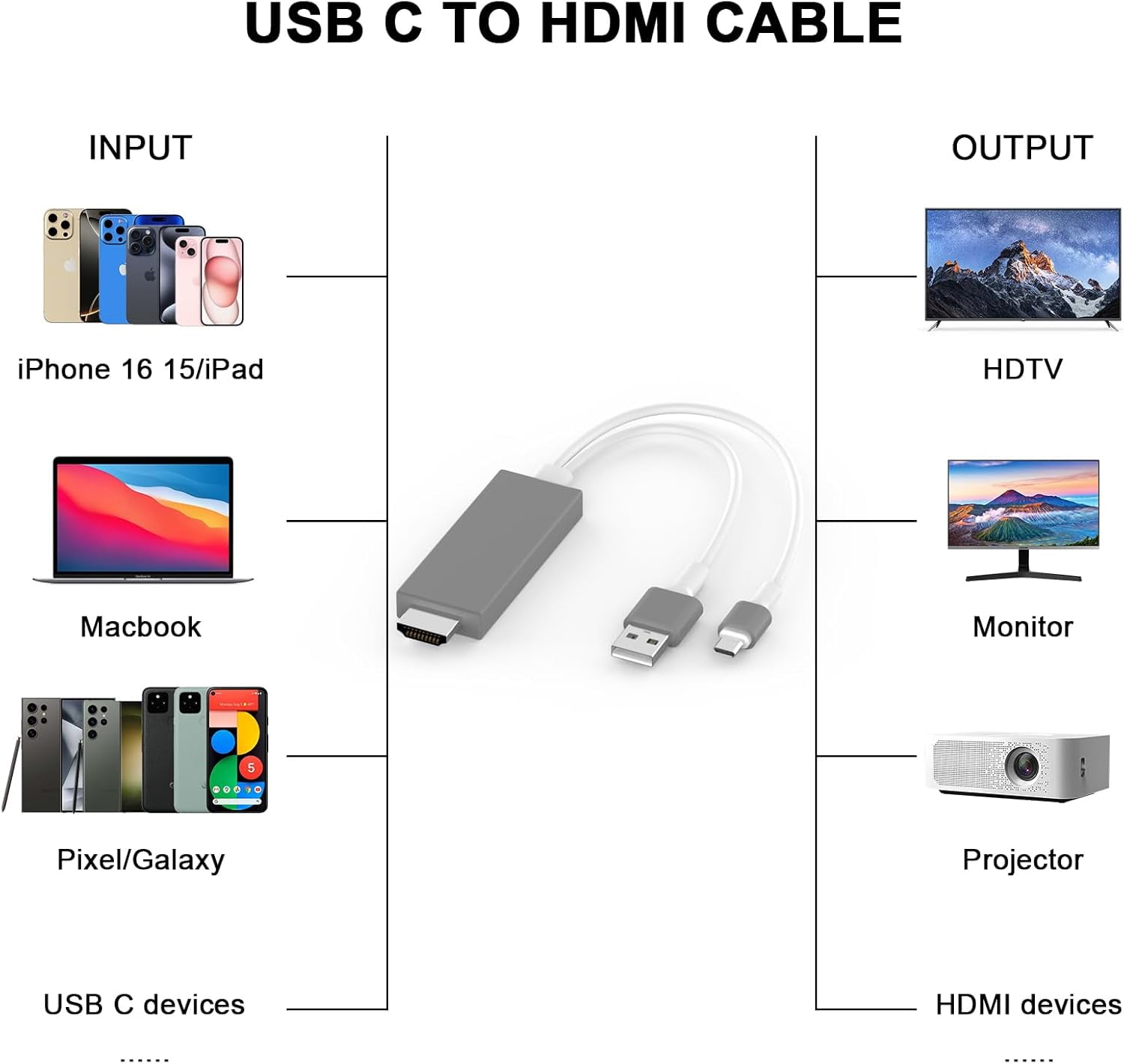
USB-C to HDMI Connection: Plug-and-Play for Any TV
Grab the Only Two Items You Actually Need
Forget adapters—your iPhone 16’s native USB-C port requires just:
– USB-C to HDMI cable (must support video output—cheap chargers won’t work)
– Available HDMI port on your TV (labeled “HDMI 1,” “HDMI 2,” etc.)
Visual Cue: Look for “HDMI-ARC” ports if available—they’re usually reserved for soundbars but work perfectly for video.
Connect iPhone 16 to TV in 90 Seconds Flat
- Plug USB-C end firmly into iPhone 16’s bottom port (aligns with charging icon)
- Insert HDMI end into TV’s input port—metal contacts face down
- Using TV remote, press Source or Input until correct HDMI channel appears
- Instant Verification: Your iPhone screen mirrors immediately—no buttons to tap
Time-Saver: Label cables with colored tape matching your TV’s HDMI ports (e.g., blue for “HDMI 1”) to avoid input-switching frustration later.
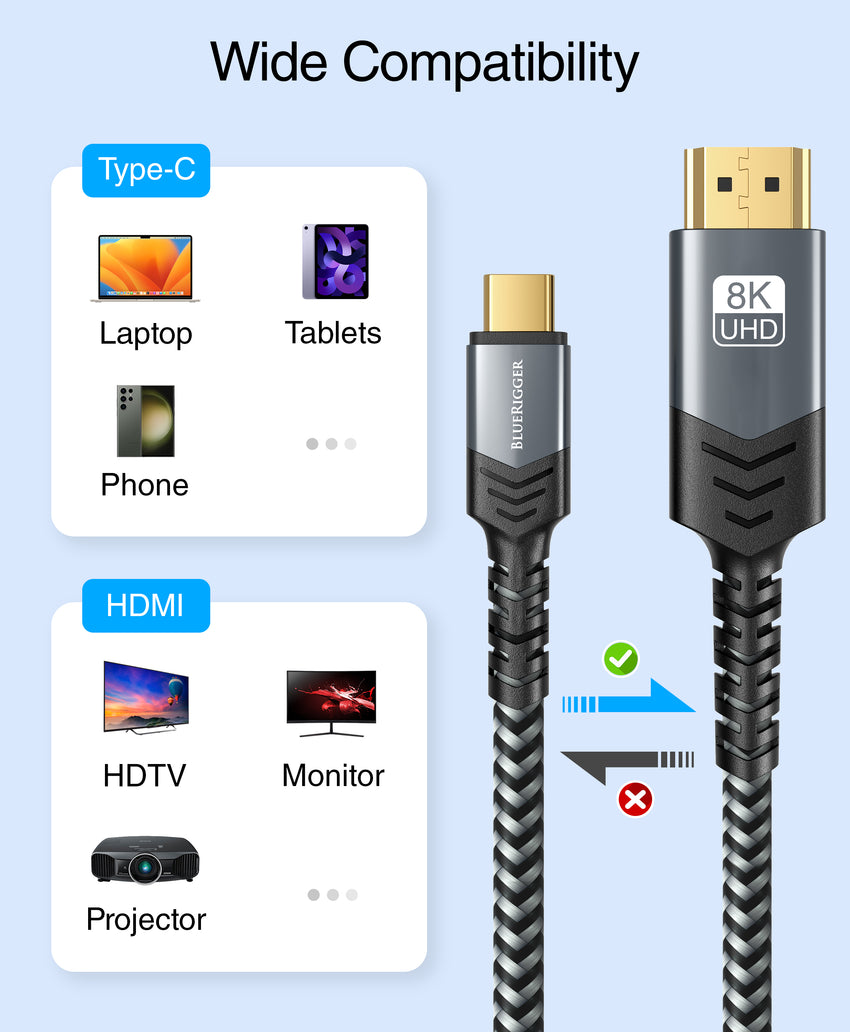
Choose the Right Cable for Your Budget and Needs
| Cable Type | Max Resolution | Best For | Price |
|---|---|---|---|
| 8K/4K 120Hz | 8K@60Hz or 4K@120Hz | Gaming, 4K HDR movies | $25.99 |
| 4K 60Hz Standard | 4K@60Hz | Everyday streaming | $13.99 |
| Right-Angle 4K 60Hz | 4K@60Hz | Tight spaces (hotel TVs) | $19.90 |
Pro Tip: CABLETIME’s zinc alloy cables survive 10,000+ bends—avoid fabric-covered cables that fray near ports. All options support HDR10 for vibrant colors.
Cast to Non-Apple TVs Using Streaming Devices
Stream Through Roku Without AirPlay Restrictions
- Install Roku app from App Store (free)
- Connect iPhone 16 and Roku to same Wi-Fi network
- Open app → Devices tab → select your Roku model
- Tap Photos+ to cast albums or Media for videos
- Critical Step: Enable “Mobile Hotspot” in Roku settings if Wi-Fi drops
Avoid This Mistake: Don’t use Roku’s screen mirroring—it compresses quality. Stick to app-specific casting for full resolution.
Google Chromecast Setup for Pixel-Perfect Streaming
- Download Google Home app (required for iPhone 16 compatibility)
- Tap + > Set up device > follow prompts to link Chromecast
- Open YouTube/Netflix → tap Cast icon (rectangle with Wi-Fi waves)
- Troubleshooting Hack: If devices don’t appear, restart Chromecast via Google Home
Performance Tip: Chromecast Ultra supports 4K—use it for Netflix Premium content that blocks AirPlay.
Amazon Fire Stick Connection for Prime Video
- Install Amazon Fire TV app (not “Prime Video”)
- Go to Devices tab → select your Fire Stick
- Choose Photos & Videos for local files or Music & Audio for sound
- Bypass Limitations: For apps like Hulu, select “Screen Mirroring” in Fire app
Warning: Fire Sticks older than Gen 3 lack 4K support—check model number on device base.
Fix Connection Failures in 5 Minutes Max
Execute These Network Checks First
Step 1: Force-restart both iPhone 16 and TV. Hold side button + volume up until Apple logo appears. This resolves 70% of “device not found” errors.
Step 2: Toggle Airplane Mode on iPhone 16 for 15 seconds. This resets network protocols without full reboot.
Step 3: On smart TVs, disable “Quick Start” in settings (Samsung) or “Fast Startup” (LG)—these features block AirPlay discovery.
Compare Methods When Streaming Fails
When AirPlay fails:
– ✅ Check Wi-Fi network match (Settings > Wi-Fi)
– ✅ Disable Bluetooth on iPhone 16 (Settings > Bluetooth)
– ❌ Don’t reboot router—wasted time 90% of cases
When HDMI fails:
– ✅ Try different HDMI port (avoid “ARC” if sound issues)
– ✅ Clean USB-C port with toothpick (lint blocks connection)
– ❌ Don’t buy new cable first—test with friend’s TV
When casting fails:
– ✅ Update streaming device OS (Roku: Settings > System > Check)
– ✅ Forget Wi-Fi network on iPhone 16 and reconnect
– ❌ Don’t reinstall apps—corrupts device pairing
Bypass App-Specific Streaming Blocks
Netflix, Disney+, and HBO Max often block direct AirPlay due to licensing. Instead:
1. Use screen mirroring (not app-specific AirPlay)
2. Play content in theater mode (swipe up on video) to hide UI elements
3. For presentations, export slides as PDFs—apps like Keynote restrict streaming
Critical Insight: Wired USB-C connections bypass all app restrictions—always carry a cable for work presentations.
Final Fix That Works Every Time: When wireless methods fail, plug in your USB-C to HDMI cable—it’s the universal solution for any TV made since 2010. For daily home use, enable Automatic AirPlay on trusted devices to eliminate manual selection. Remember that 4K streaming requires both your TV and content source to support it—don’t blame your iPhone 16 for Netflix’s 1080p limitations. Keep this guide bookmarked for your next connection crisis: with these verified steps, you’ll transform from frustrated user to the tech-savvy friend who fixes everyone’s streaming problems. Next time you need to share photos or presentations, your iPhone 16 will connect to that TV faster than you can grab the popcorn.


