

That crucial text thread with your boss vanished after an accidental swipe, or maybe your child cleared your entire Messages app while playing with your phone. Don’t panic—your iPhone 16 offers multiple recovery options that can restore those conversations if you act quickly. Unlike older iPhone models, iOS 16 introduced powerful native tools specifically designed for message recovery, making it possible to retrieve texts you thought were gone forever. The key is understanding which method works best for your situation and acting before new data overwrites the deleted messages.
Your success depends heavily on timing and preparation. Messages deleted within the last 30 days have the highest recovery probability using built-in tools, while older deletions require backup restoration. This guide walks you through every proven technique to recover deleted messages on your iPhone 16, starting with the simplest solution that preserves all your current data.
Recently Deleted Folder: Your First Recovery Stop
The iPhone 16’s Messages app includes a hidden Recently Deleted folder—your best chance for quick recovery without data loss. This feature automatically stores deleted messages for 30-40 days before permanent removal, but only if you’re running iOS 16 or later.
Access Your Recently Deleted Messages
Two pathways exist depending on your Message Filtering settings:
Path 1 (Filtering Off):
1. Open Messages app
2. Tap Edit in top-left corner
3. Select Show Recently Deleted
Path 2 (Filtering On):
1. Open Messages app
2. Tap Filters (replaces Edit button)
3. Choose Recently Deleted
Critical note: Messages deleted before updating to iOS 16 won’t appear here—this only works for deletions after updating.
Recover Specific Conversations Without Hassle
Inside Recently Deleted, you’ll see:
– Phone numbers or contact names for each thread
– Message count showing how many texts were in the conversation
– Days remaining until permanent deletion
– No visible content—privacy protection prevents viewing actual messages
To recover:
– Tap to select individual conversations or multiple threads
– Choose recovery option: Tap Recover for specific threads or Recover All to restore everything
– Confirm by selecting Recover Message or Recover [Number] Messages
Pro tip: Recovered messages reappear in chronological order based on their original timestamps—they won’t jump to the top of your Messages list, so scroll through carefully to find them.
iCloud Backup Restoration: When Recently Deleted Fails
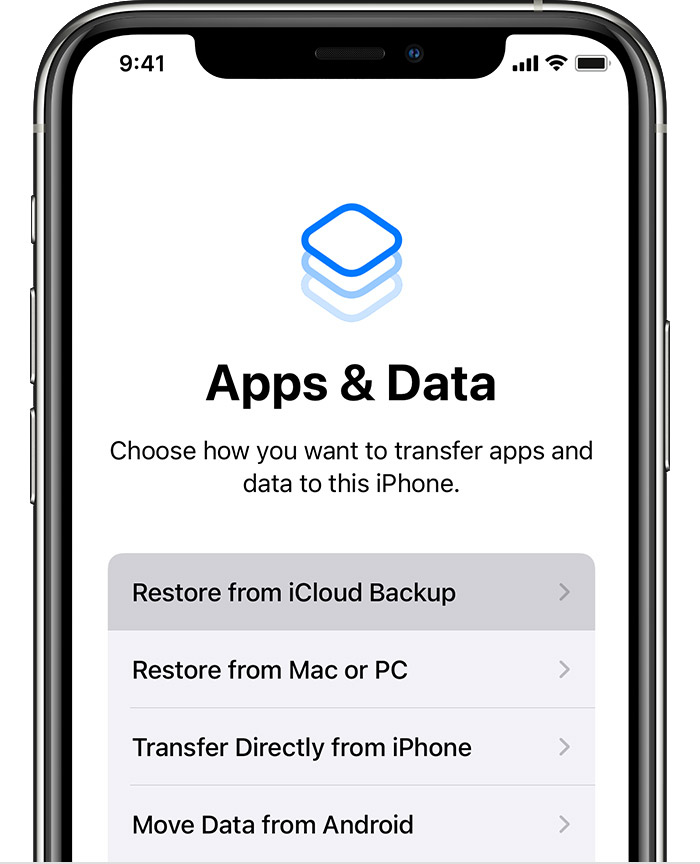
If your messages are older than 40 days or you’ve already cleared the Recently Deleted folder, your iCloud backup becomes your next option. This method requires erasing your iPhone 16 completely, so only use it when other options fail.
Verify Your Backup Contains the Messages
Before taking drastic action:
1. Go to Settings > [Your Name] > iCloud > Manage Storage > Backups
2. Check backup date—it must predate your message deletion
3. Confirm backup includes Messages (though you can’t preview specific texts)
Warning: If your most recent backup occurred after deleting the messages, this method won’t work—look for older backups.
Complete Restoration Process Without Data Loss
Critical preparation steps:
1. First, backup current data: Save any new photos, contacts, or app data to another location
2. Enable iCloud Photos: Preserve recent images before restoration
3. Sync contacts: Ensure recent contacts aren’t lost
Restoration steps:
1. Settings > General > Transfer or Reset iPhone > Erase All Content and Settings
2. During setup: Choose Restore from iCloud Backup
3. Select backup: Pick the most recent backup containing your messages
4. Wait patiently: Full restoration can take 1-3 hours depending on data size
Smart strategy: After restoration, download apps individually rather than restoring from backup to maintain recent app data.
Messages in iCloud Sync Recovery Method
Your deleted messages might still exist on other Apple devices. This cross-device sync method often rescues forgotten conversations without full restoration.
Check Other Devices Immediately
Quick audit of your Apple ecosystem:
– iPad: Open Messages, scroll through conversations
– Mac: Launch Messages app, check sidebar
– Old iPhone: Power on and check Messages if available
Timing is critical: The longer you wait, the higher the chance these devices sync the deletion.
Force Re-Sync Process for Maximum Recovery
If messages exist elsewhere:
- On iPhone 16: Settings > [Your Name] > iCloud > Show All > Messages in iCloud
- Toggle off Messages in iCloud on the device with your messages
- Wait 2-3 minutes
- Toggle on Messages in iCloud on iPhone 16
- Allow full sync—this may take 10-30 minutes
Pro tip: Temporarily disable Messages in iCloud on other devices if they contain your deleted texts, then re-enable on iPhone 16 first to prevent sync conflicts.
Computer Backup Recovery Without Full Restoration

Mac or PC backups offer another recovery route without complete device restoration. This method works with both Finder (macOS Catalina+) and iTunes (Windows/older Macs).
Finder/iTunes Selective Recovery Steps
Connection setup:
– Mac (Catalina+): Use Finder sidebar
– PC/older Mac: Use iTunes device icon
– Cable: iPhone 16 requires USB-C to USB-C or USB-C to USB-A
Step-by-step restoration:
1. Connect iPhone 16 via cable
2. Trust computer when prompted
3. Select your device in Finder/iTunes
4. Choose Restore Backup
5. Pick date carefully—must predate deletion
6. Click Restore and wait 15-45 minutes
Important: This overwrites all current data, so backup new information first.
Third-Party Selective Extraction Alternative
Reputable tools like iMazing or PhoneRescue can extract messages from computer backups without full restoration. These require:
– Backup file access on your computer
– Message preview capability before recovery
– Selective extraction of specific conversations
Security note: Avoid tools requiring jailbreak or asking for your Apple ID password—stick to established brands with positive reviews.
Network Provider SMS Recovery for Critical Texts

Traditional SMS messages (green bubbles) might survive on your carrier’s servers, unlike encrypted iMessages (blue bubbles).
Carrier Recovery Process That Actually Works
What carriers can recover:
– SMS text messages only
– Date/time stamps
– Sender/recipient numbers
Contact procedure:
1. Call customer service (611 from iPhone)
2. Verify identity with account PIN and personal details
3. Request specific timeframe when messages were deleted
4. Ask about fees—some carriers charge $5-25 for records
5. Delivery method—usually email or postal mail within 3-5 business days
Major carrier policies:
– Verizon: Retains 3-5 days of SMS content
– AT&T: Stores 48-72 hours of message details
– T-Mobile: Varies by plan type
Important limitation: Carriers cannot recover iMessages due to end-to-end encryption.
Prevent Future Message Loss With Smart Settings
Stop playing message recovery roulette—configure your iPhone 16 to prevent future loss.
Message Retention Settings That Work
Configure permanent storage:
1. Settings > Messages > Keep Messages
2. Select “Forever” instead of 30 days or 1 year
3. Confirm change when prompted
Why this matters: Prevents system-initiated message deletion that could wipe important conversations.
Automatic Backup Strategy Framework
Multi-layer approach:
iCloud automatic backup:
– Enable: Settings > [Your Name] > iCloud > iCloud Backup
– Daily triggers: Wi-Fi + power + locked screen
– Weekly verification: Check backup dates
Computer backup rotation:
– Monthly encrypted backup via Finder/iTunes
– Store multiple backups (keep 3-4 recent ones)
– Label by date for easy identification
Pro tip: Enable encrypted backups to include passwords and health data in your computer backups.
Troubleshooting Failed Recovery Attempts
When standard methods fail, systematic troubleshooting reveals hidden solutions.
Recently Deleted Folder Empty? Here’s Why
Common causes and fixes:
– 30-day limit exceeded: Switch to backup restoration immediately
– iOS 15 or earlier deletion: Use backup methods only—no native recovery
– Manual permanent deletion: No recovery possible without backups
Backup Not Found? Check These Hidden Spots
Immediate actions:
1. Check hidden backups: Look in iTunes preferences > Devices
2. Verify Apple ID: Ensure you’re checking correct account
3. Family sharing: Check if family member has relevant backup
Critical reminder: The sooner you act after message deletion, the higher your recovery chances. New data written to your iPhone 16 overwrites deleted message storage space, reducing recovery options daily.
Final tip: Your iPhone 16’s Recently Deleted folder is your first and best recovery option—check it immediately when messages disappear. For long-term protection, set Messages to “Keep Forever” and enable automatic iCloud backups. Remember that SMS messages have different recovery options than iMessages, and act quickly before the 30-40 day window closes. With these proven methods, you’ll never have to worry about losing important conversations again—your iPhone 16 has the tools you need if you know where to look.


