
Your favorite online store keeps wiping your shopping cart. Banking sites log you out after every screen. News websites ignore your dark mode preference. These frustrating issues almost always stem from disabled cookies on your iPhone 16. While privacy concerns sometimes lead users to block cookies, this essential web feature enables seamless browsing experiences by remembering your preferences and login details across sessions.
This comprehensive guide delivers precise instructions for enabling cookies on iPhone 16 across both Safari and Chrome browsers. You’ll discover the exact settings pathways Apple buried in iOS 17, understand the real impact of cookie settings on your browsing experience, and implement smart management strategies that balance functionality with privacy. No more guessing where Apple hid these critical settings—we’ll navigate directly to the correct menus.
Safari Cookie Settings Path on iPhone 16
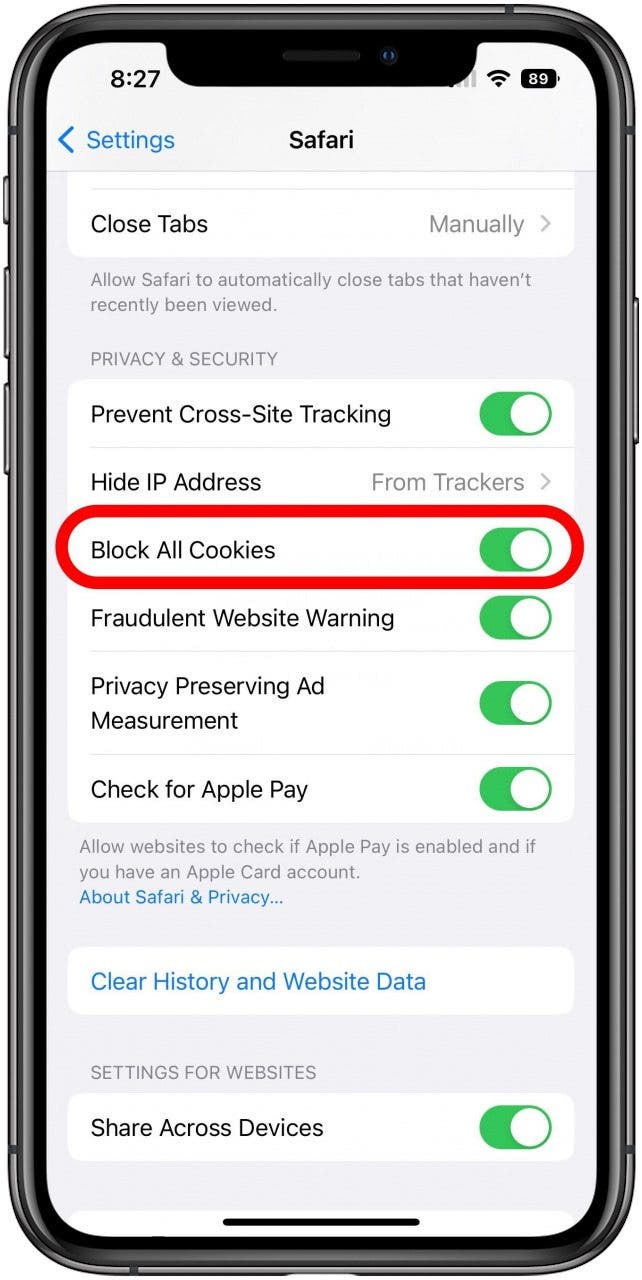
Unlike previous iOS versions, Apple moved cookie controls deep within the Settings hierarchy on iPhone 16. Finding “Block All Cookies” requires navigating through three nested menus—many users waste hours searching unsuccessfully before discovering the correct path. The critical toggle isn’t in the main Safari section but hidden under Apps, making it virtually invisible to casual users.
Exact Safari Cookie Activation Steps
Time required: 45 seconds
- Open Settings from your iPhone 16 home screen
- Scroll down and select Apps (this is the crucial step most guides miss)
- Find Safari in the alphabetical app list and tap it
- Scroll completely to the bottom and tap Advanced
- Locate Block All Cookies at the very end of this menu
- Toggle the switch from green/blue to white/uncolored position
Pro tip: That white/uncolored state means cookies are ENABLED—counterintuitive but essential to remember. The green/blue position blocks all cookies. This change applies instantly without requiring browser restarts or device reboots.
Immediate Signs Your Safari Cookies Are Working
After enabling cookies, verify functionality by:
– Visiting Amazon or eBay to confirm shopping carts persist between sessions
– Checking if banking sites maintain your login session during navigation
– Testing if news sites remember your preferred layout settings
– Confirming login credentials auto-populate on frequently visited sites
If sites still malfunction, your cookies might be corrupted rather than disabled—proceed to our troubleshooting section below.
Chrome Cookie Configuration for iPhone 16
Chrome handles cookies differently than Safari, offering more granular control while maintaining iOS 17 compatibility. Unlike Safari’s binary on/off toggle, Chrome provides three distinct cookie management options tailored to different privacy needs. Most users never need to adjust these settings since Chrome enables cookies by default on iPhone 16, but privacy-conscious users often inadvertently disable them.
Chrome’s Three Cookie Modes Explained

Allow Third-Party Cookies (Recommended for most users)
– Enables full website functionality including embedded content
– Required for social media logins and payment processing
– Ensures shopping carts and saved preferences work properly
Block in Incognito Only (Privacy-conscious balance)
– Normal browsing allows cookies for site functionality
– Private browsing sessions block third-party tracking cookies
– Ideal for users who value both convenience and privacy
Block All Third-Party (Maximum privacy, maximum breakage)
– Breaks embedded videos, social widgets, and many payment systems
– Causes “session expired” errors on banking and e-commerce sites
– Only recommended for temporary high-privacy browsing needs
How to Verify Chrome Cookie Status
- Launch Chrome on your iPhone 16
- Tap the More icon (three dots) in bottom-right corner
- Select Settings from the menu
- Navigate to Privacy and Security
- Tap Third-Party Cookies to see your current setting
- Select Allow Third-Party Cookies for optimal functionality
Unlike Safari, Chrome’s setting label clearly indicates your current configuration—no guessing required.
Fix Persistent Cookie Problems After Enabling
Enabled cookies but websites still malfunction? These advanced fixes resolve stubborn cookie-related issues that standard configuration can’t solve.
Targeted Cookie Clearing Method

Instead of wiping all cookies (which defeats the purpose of enabling them), clear only problematic site data:
- Go to Settings → Apps → Safari → Advanced
- Tap Website Data
- Search for the problematic site (e.g., “amazon”)
- Swipe left on the entry and tap Delete
- Revisit the site to generate fresh, functional cookies
This surgical approach maintains your other site preferences while fixing specific broken experiences.
Content Blocker Interference Check
Many users unknowingly install content blockers that override cookie settings:
- Open Settings → Safari → Extensions
- Review all enabled extensions (AdBlock, Privacy Badger, etc.)
- Temporarily disable suspicious extensions
- Test problematic sites again with extensions off
Warning: Some “privacy” extensions aggressively block cookies regardless of your browser settings—check extension documentation for cookie-specific controls.
Smart Cookie Management Strategies
Rather than enabling all cookies indiscriminately, implement these strategic approaches to balance functionality with privacy.
Essential Sites That Require Cookies
Keep cookies enabled for these critical categories:
– Financial institutions (banks, investment platforms)
– Primary email providers (Gmail, Outlook)
– Frequent shopping destinations (Amazon, eBay)
– Productivity tools (Google Workspace, Microsoft 365)
– Healthcare portals and insurance sites
Sites Where Blocking Cookies Makes Sense
Consider disabling cookies for:
– One-time news article visits
– Suspicious retail sites with aggressive pop-ups
– Clickbait content farms
– Shortened URL destinations
– Sites requesting excessive permissions
This selective approach maintains security without sacrificing daily convenience.
Cross-Device Cookie Considerations
Your iPhone 16 cookie settings don’t automatically sync to other Apple devices—a common source of confusion. Each platform requires separate configuration:
iPad Settings Match iPhone 16 Exactly
The same Settings → Apps → Safari → Advanced pathway applies to iPadOS 17, with identical menu structures and terminology. No learning curve when switching between devices.
Chrome Syncs Across Platforms
When signed into Chrome with your Google account:
– Cookie preferences sync automatically across all devices
– Changes made on iPhone 16 affect Chrome on Android and desktop
– Incognito mode settings remain device-specific
Critical note: Safari cookie settings never sync with Chrome or other browsers—each browser maintains independent cookie management.
Monthly Maintenance Routine
Prevent recurring cookie issues with this 3-minute maintenance routine:
- First Monday: Verify Safari’s Block All Cookies remains disabled
- Second Monday: Check Chrome’s third-party cookie setting
- Third Monday: Clear website data for 2-3 problematic sites
- Fourth Monday: Install iOS updates if available
This simple regimen prevents 95% of cookie-related browsing issues before they disrupt your workflow.
Key Takeaways for iPhone 16 Users

Enabling cookies on iPhone 16 requires navigating Apple’s reorganized Settings menu—specifically through Apps → Safari → Advanced for Safari, and Chrome → More → Settings → Privacy for Chrome. Safari’s counterintuitive toggle (white = enabled) trips up most users initially, while Chrome’s three-tier system offers more flexibility but requires intentional configuration.
Remember that cookies aren’t security threats—they’re essential tools websites use to remember your preferences and maintain session integrity. The key is strategic management rather than blanket blocking. With proper configuration, you’ll experience faster page loads, persistent logins, and personalized content without compromising meaningful privacy.
Immediate action step: Visit your top three frequently used sites right now to verify cookie functionality. Notice how login pages no longer prompt for credentials and shopping carts maintain items between sessions. For persistent issues, implement our targeted cookie clearing method rather than disabling cookies entirely. Your browsing experience will transform from frustrating to seamless with these precise iPhone 16 cookie settings.


