
You’ve unboxed your new iPhone 16, completed the initial setup, but something’s off—your messages to other iPhone users still show up as green bubbles instead of blue. This frustrating issue means iMessage isn’t activated, preventing you from enjoying Apple’s signature messaging features like read receipts, high-quality media sharing, and seamless cross-device syncing. The good news is that learning how to enable iMessage on iPhone 16 typically takes just a few minutes and requires no technical expertise.
Whether you’re setting up your first iPhone or troubleshooting activation problems after an iOS update, this comprehensive guide delivers the exact steps you need. You’ll discover why iMessage might not activate automatically, how to fix common errors like “Waiting for activation,” and special considerations for eSIM users. By the end of this guide, you’ll have blue bubbles flowing consistently and your messages syncing perfectly across all your Apple devices.
Activate iMessage Directly from Settings
Navigate to Messages Configuration
Open your iPhone 16’s Settings app and scroll down to find Apps. Tap this option, then locate and select Messages from the alphabetical list—this takes you straight to the messaging control center where iMessage lives. The interface might differ slightly from previous iPhone models, but the path remains consistent in iOS 17.
Pro tip: If you’re having trouble finding the Messages option, use the search bar at the top of Settings to quickly locate it by typing “Messages.”
Enable iMessage Service
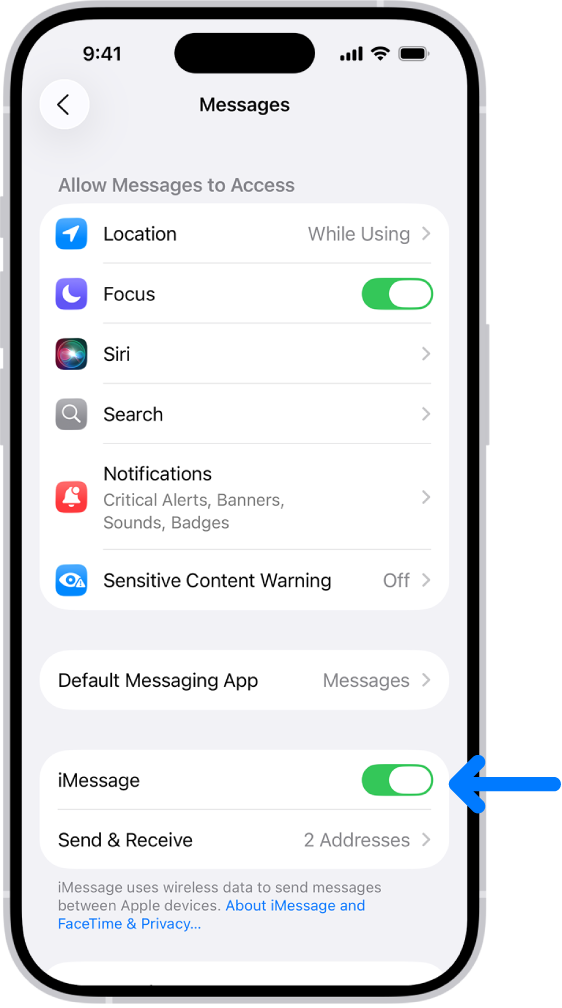
Once in the Messages menu, locate the iMessage toggle switch near the top of the screen. Tap it once to activate the service—the switch will turn green immediately, though full activation may take a moment. Your iPhone 16 now contacts Apple’s servers to verify your phone number and Apple ID credentials.
Important: If you see “Waiting for activation” below the toggle, don’t panic. This is normal during the verification process, but avoid repeatedly toggling iMessage on and off, as this resets the activation timer and prolongs the process.
Configure Your Messaging Addresses
Tap Send & Receive directly beneath the iMessage toggle to specify which contact methods work with iMessage. You’ll see all phone numbers and email addresses associated with your Apple ID—select each one you want to use for iMessage conversations. Your primary phone number should appear automatically if your carrier supports iMessage.
At the bottom of this screen, choose your preferred method for starting new conversations. Most users select their phone number for consistency, but if you frequently switch devices, an email address might serve you better.
Resolve Common Activation Failures
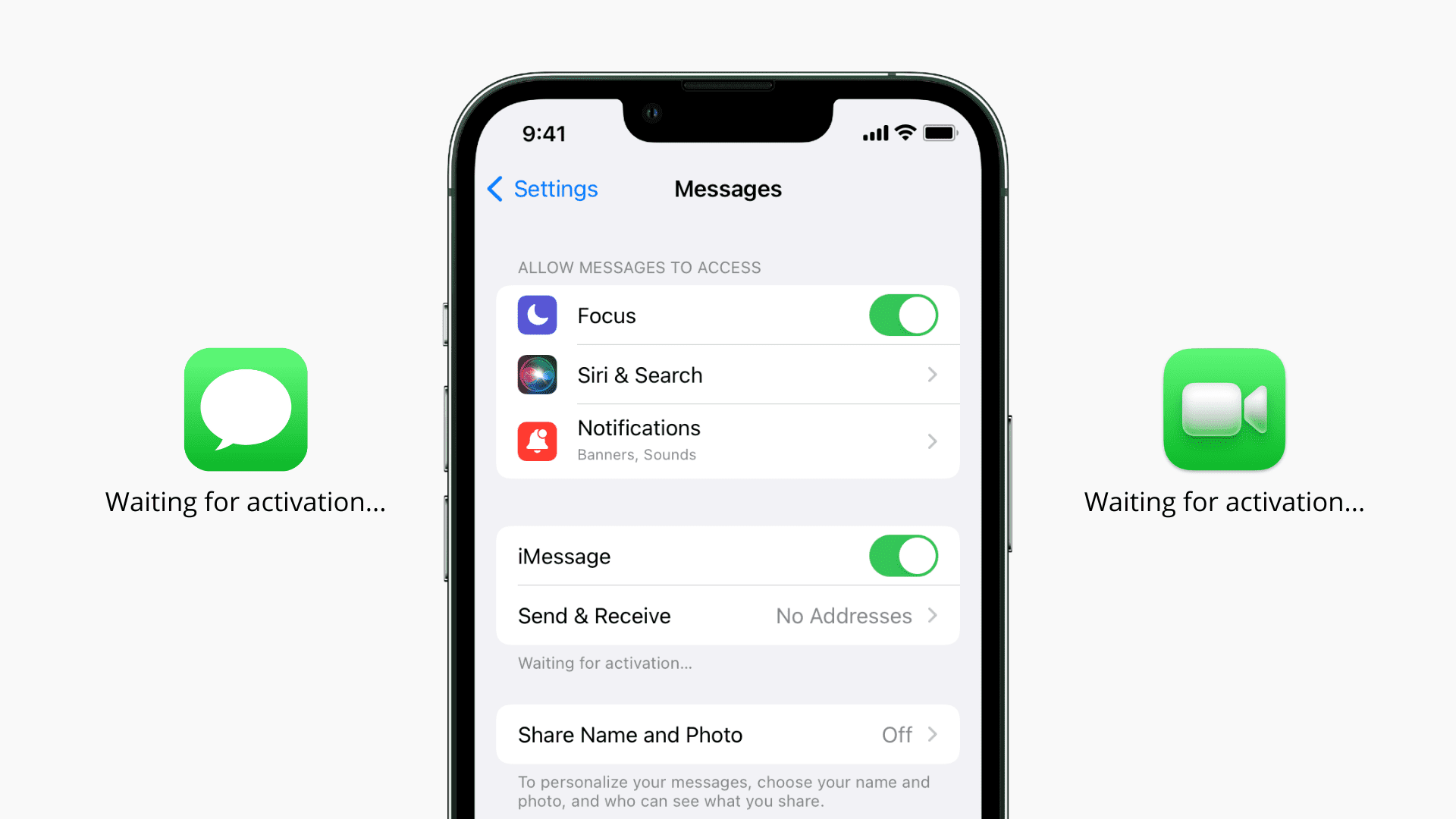
Fix “Waiting for Activation” Status
When iMessage displays “Waiting for activation,” your carrier is verifying your phone number with Apple’s servers—a process that typically completes within minutes but can take up to 24 hours. During this period:
- Be patient—repeatedly toggling iMessage resets the verification timer
- Verify network connection—ensure Wi-Fi or cellular data is active and stable
- Test SMS capability—send a regular text message to confirm your carrier’s basic service works
Critical warning: Never force-close the Settings app or restart your iPhone during activation. This interrupts the verification handshake between your carrier and Apple, potentially causing longer delays.
Troubleshoot “Activation Unsuccessful” Errors
If activation fails completely, follow this precise reset sequence:
- Disable iMessage: Settings > Apps > Messages > Toggle iMessage off
- Turn off FaceTime: Settings > Apps > FaceTime > Toggle FaceTime off
- Power cycle your iPhone 16: Press and hold the side button + volume button until the power slider appears, then slide to power off
- Wait 60 seconds after the screen goes black
- Restart and re-enable: Power on your device, then turn on FaceTime first, followed by iMessage
This method clears network registration conflicts that often block iMessage activation on new iPhone 16 devices.
Address eSIM-Specific Activation Issues
iPhone 16 users with eSIM profiles frequently encounter activation problems after setup. If you see messages sending as green bubbles, “Not Delivered” errors, or messages originating from your email instead of phone number:
- Quick fix: Settings > Apps > Messages > Toggle iMessage off, wait 10 seconds, then toggle back on
- Why this works: eSIMs require manual refresh to register properly with Apple’s messaging network
This simple toggle restarts the connection between your eSIM and Apple’s servers without requiring a full device restart.
Verify Essential Network Requirements
Check Time Settings Accuracy
Incorrect time settings will block iMessage activation completely. Navigate to Settings > General > Date & Time and confirm:
- Set Automatically is toggled ON (recommended)
- Your time zone matches your current location
- Date and time display correctly without manual adjustments
iMessage relies on precise time synchronization for security certificates—any discrepancy prevents activation.
Test Connectivity Thoroughly
iMessage requires stable internet access via Wi-Fi or cellular data:
- Wi-Fi verification: Open Safari and load a website like apple.com
- Cellular test: Disable Wi-Fi and confirm you can browse the web
- SMS confirmation: Send a regular text message to ensure carrier messaging works
Pro tip: If using cellular data, check that your carrier supports iMessage in your region—some international carriers restrict Apple’s services.
Handle SMS Activation Prompts Correctly
During setup, you might see: “Your network provider may charge for SMS messages used to activate FaceTime and iMessage”
Always tap “Turn On” to authorize this process. While most carriers include these activation texts in your plan, international users should check with their provider about potential SMS fees.
Optimize iMessage Experience Across Devices
Enable Messages in iCloud Sync
Keep your entire message history consistent across all Apple devices:
- Sign in with the same Apple ID on all devices
- Connect to Wi-Fi on your iPhone 16
- Navigate: Settings > [Your Name] > iCloud > Messages
- Toggle on “Use on this iPhone”
Storage consideration: Messages in iCloud consumes your iCloud storage space. Deleting messages from one device removes them from all synced devices—ideal for organization but requires careful management.
Set Up Text Message Forwarding
For users who prefer not to use iCloud syncing:
- Settings > Apps > Messages
- Tap Text Message Forwarding
- Enable devices you want to include
- Enter the 6-digit code displayed on target devices
This method forwards new SMS messages to your iPad or Mac without storing your entire history in the cloud, offering a middle ground between full iCloud sync and device isolation.
Customize Your Messaging Identity
Personalize how contacts see you in conversations:
- Open Messages app
- Tap Edit at the top of your conversation list
- Select Set Up Name & Photo
- Choose your display name and profile picture
- Select sharing preference:
– Contacts Only: Only saved contacts see your custom identity
– Always Ask: Confirm sharing for each new conversation
Note: Android users will only see your phone number—this customization works exclusively within the Apple ecosystem.
Final Verification and Maintenance
Confirm Successful Activation
Test your newly enabled iMessage with these verification steps:
- Send a test message to another iPhone user
- Look for blue bubbles instead of green
- Check for delivery status (“Delivered” appears below your message)
- Send media to confirm high-quality transfer
Success indicators: Blue message bubbles, read receipts (if enabled), and seamless transition between Wi-Fi and cellular networks during conversations.
Address Persistent Activation Problems
If issues continue after standard troubleshooting:
- Online activation: Visit apple.co/IMFT-mac on any device
- Tap “Get Started” under Enable Apple Account
- Sign in with your Apple ID
- Enter your phone number when prompted
- Check email for activation confirmation
This web-based method bypasses carrier-specific activation problems by linking your Apple ID directly to iMessage services.
Maintain Optimal iMessage Performance
Keep your messaging experience smooth with these maintenance tips:
- Update iOS regularly for the latest iMessage features and security patches
- Check carrier settings updates periodically (Settings > General > About)
- Restart your iPhone monthly to clear temporary network glitches
- Verify Apple ID security to prevent account-related messaging issues
Your iPhone 16 iMessage is now fully operational with blue bubbles confirming successful activation. Messages flow seamlessly across your Apple ecosystem, and you’ve gained access to features like Tapback reactions, message effects, and collaborative document sharing. For continued reliability, ensure your device stays connected to the internet and your carrier maintains proper iMessage support in your region—most common issues resolve themselves with patience during the initial 24-hour activation window.


