
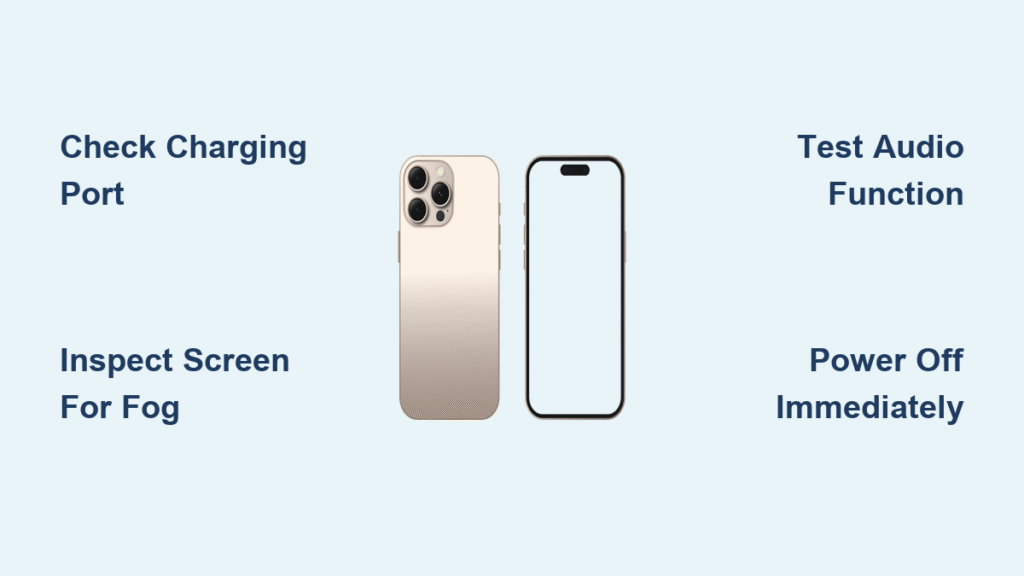
Your iPhone 16 just took an unexpected swim. Whether it slipped into the sink, got caught in a rainstorm, or survived a toilet mishap, you’re now staring at a potentially expensive problem. The good news? Most water damage is detectable early, and quick action can save your device from permanent damage.
This guide walks you through every method to check your iPhone 16 for water damage, from simple visual inspections to professional diagnostic steps. You’ll learn exactly what to look for, when to panic, and how to prevent future water disasters. By the end, you’ll know precisely how to check for water damage on iPhone 16 and take the right action before corrosion destroys your expensive device.
iPhone 16 Water Resistance Reality Check
Your iPhone 16 is not waterproof—it’s water-resistant with an IP68 rating. This distinction matters because many users treat these ratings as invincibility shields. The IP68 certification means your device survived laboratory tests at 6 meters depth for 30 minutes under perfect conditions. Real life rarely matches those controlled environments.
What IP68 Actually Protects
- Complete dust protection (the 6 in IP68)
- Water immersion up to 6 meters for 30 minutes
- Fresh water only – salt water, pool chemicals, and soap degrade seals
- Room temperature – hot water and steam damage protective coatings
Important reality check: That water resistance degrades over time. Every drop, every pocket of lint, and every temperature change weakens the seals. Your iPhone 16 might handle a splash today but fail after six months of normal wear. Apple’s IP68 rating applies only to new devices straight from the box, not your daily-driver phone that’s been through drops and temperature changes.
Visual Water Damage Indicators

SIM Slot Liquid Contact Indicator
Critical update: iPhone 16 doesn’t have a visible Liquid Contact Indicator (LCI) in the SIM slot—Apple removed external LCIs starting with iPhone 14. This means you can’t perform the traditional “check the white sticker” test that worked on older models. Don’t waste time looking for something that isn’t there on your iPhone 16.
External Damage Signs to Inspect
Check these areas immediately after water exposure:
- Charging port: Look for green/white corrosion around USB-C pins
- Speaker grills: White residue or visible mineral deposits
- Camera lenses: Fog or condensation under the glass
- Display layers: Water trapped between screen components
- Metal frame: Discoloration or oxidation spots
- Button edges: Sticky or mushy feeling when pressed
Pro tip: Use a flashlight at a 45-degree angle to spot micro-damage invisible under normal lighting. Hold your phone sideways with the light source coming from the side—this dramatically increases your ability to see tiny water droplets or corrosion you’d otherwise miss.
Screen-Specific Warning Signs

- Dark patches that appear when screen is on
- Touch dead zones where gestures don’t register
- Display flickering during normal use
- Color shifts in specific screen areas
- Water marks visible when device is powered off
If you notice any of these screen issues, power off your iPhone immediately. Continuing to use a water-damaged screen can cause permanent damage to the display controller.
Functional Damage Symptoms
Critical Warning Signs
Power off your iPhone 16 immediately if you notice:
- Face ID fails to recognize you or won’t set up
- Buttons stick or respond randomly
- Speakers sound muffled or produce static
- Charging port rejects cables intermittently
- Device randomly restarts or won’t boot
These symptoms indicate water has likely reached critical internal components. Every minute you keep the device powered on allows corrosion to spread through delicate circuitry.
Audio System Checks
Test these functions within 24 hours:
- Play music at maximum volume – listen for distortion
- Record voice memo – check microphone clarity
- Make test call – verify earpiece and microphone
- Use speakerphone – test loudspeaker functionality
- Connect headphones – confirm audio port works
If you detect any audio issues, don’t ignore them. Water damage often starts with subtle audio problems that quickly escalate as corrosion spreads through the audio circuitry.
Immediate Response Protocol
First 5 Minutes After Water Exposure
- Power off completely – Hold Side + Volume Down buttons
- Remove everything – case, screen protector, SIM card tray
- Blot dry immediately – use lint-free cloth on all surfaces
- Position correctly – stand phone upright with port facing down
- Don’t touch anything – avoid pressing buttons or charging
Time is critical: The first five minutes after water exposure determine whether your iPhone 16 survives. Electronics and water don’t mix—corrosion begins forming within minutes as minerals in water react with metal components.
Drying Process That Works

Skip the rice myth—use these proven methods instead:
- Silica gel packets: 24-48 hours in sealed container
- Air circulation: Place near fan, not heat source
- Desiccant chambers: Commercial drying boxes work best
- Patience factor: Minimum 24 hours, 48 hours preferred
Never do these: Hair dryers, ovens, direct sunlight, compressed air, or shaking the device violently. These common “solutions” actually push moisture deeper into your device or cause thermal damage to sensitive components.
Professional Assessment Options
When Professional Help Becomes Essential
Seek Apple support immediately if:
– Device won’t power on after 48 hours
– Multiple symptoms appear simultaneously
– Corrosion is visible anywhere on device
– Face ID or Touch ID completely fails
– Screen shows permanent discoloration
Expert note: Even if your iPhone 16 seems to work after drying, internal corrosion may be spreading undetected. Many users report “recovered” phones failing weeks later due to hidden water damage.
Apple Service Reality
What to expect at Apple:
- Diagnostic fee: Usually $99 if no AppleCare+
- Liquid damage: Not covered under standard warranty
- Repair cost: Often exceeds device value for severe damage
- Data recovery: May be possible even if device is beyond repair
- Consumer law: Some regions provide additional protections
Pro tip: Book Genius Bar appointments online—walk-ins rarely work for water damage cases. When you arrive, don’t admit to submerging your phone intentionally, as Apple uses this against warranty claims.
Prevention Strategies That Work
Daily Protection Habits
- Never test water resistance intentionally
- Rinse with fresh water only after salt water exposure
- Dry ports immediately after any liquid contact
- Inspect seals monthly for debris or damage
- Avoid extreme temperatures – both hot and cold
Critical insight: Steam from showers is just as dangerous as liquid water. The heat and moisture degrade your iPhone’s water-resistant seals faster than you realize. Don’t bring your iPhone 16 into the bathroom during showers.
Protective Case Recommendations

LifeProof FRĒ Case (tested effective):
– Waterproof rating: 6.5 feet for 1 hour
– Drop protection: Survives 6-foot drops
– Built-in screen protector: Maintains touch sensitivity
– Trade-off: Difficult removal process, stiff button controls
Alternative: Catalyst waterproof cases offer similar protection with easier access. For high-risk environments like boats or pools, this $50 investment protects your $1,000+ device far better than Apple’s built-in water resistance.
Common Water Damage Questions
Q: Can I shower with my iPhone 16?
A: No. Steam, soap, and shampoo damage protective seals even if water doesn’t penetrate. The combination of heat and chemicals accelerates seal degradation.
Q: How long does water resistance last?
A: Expect degradation within 12-18 months of normal use. Every drop accelerates seal failure—your “water-resistant” phone becomes increasingly vulnerable over time.
Q: Will Apple know if I lied about water damage?
A: Yes. Internal sensors track liquid exposure even without visible LCI indicators. Apple technicians can detect water damage through microscopic examination of internal components.
Q: Should I update iOS after water damage?
A: Wait until device is completely dry and functional. Updates can fail on compromised hardware, potentially bricking your device during the update process.
Q: Can water damage cause delayed problems?
A: Absolutely. Corrosion continues spreading for weeks after initial exposure. Many users report phones working fine for days or weeks before suddenly failing.
Key Takeaway: Your iPhone 16’s water resistance is a safety net, not a superpower. Check for damage immediately after any liquid exposure, act fast if symptoms appear, and invest in real waterproof protection for high-risk situations. The $50-$100 spent on a quality waterproof case costs far less than a $1000+ device replacement. Remember—there’s no such thing as waterproof, only water-resistant until it isn’t. Stay vigilant, know the signs, and protect your investment before disaster strikes.


