
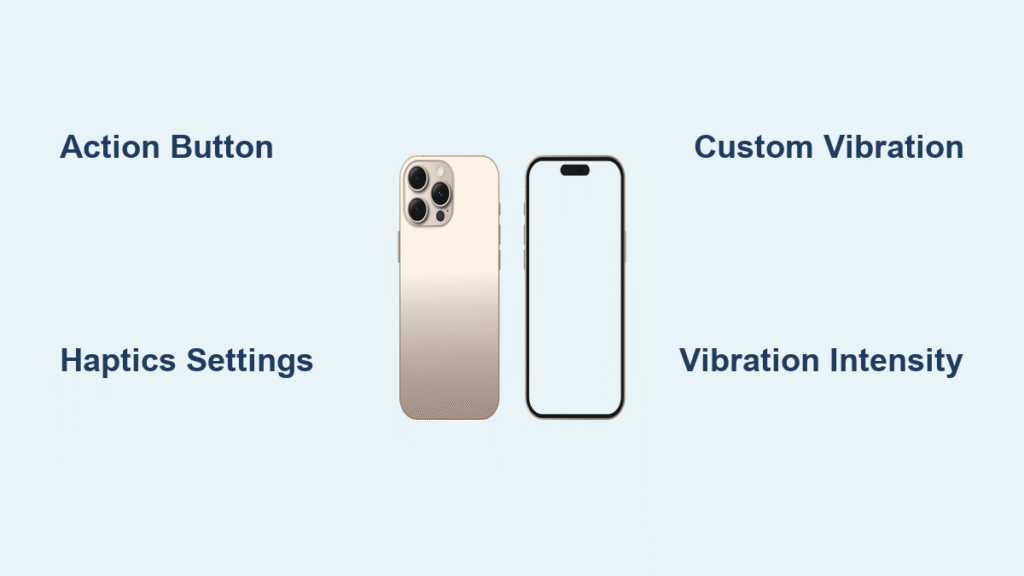
Your iPhone 16 just buzzed loudly during a critical presentation—but you thought it was on silent. That’s because Apple removed the familiar ring/silent switch, replacing it with the Action button on the iPhone 16. This fundamental design change means you can’t just flip a switch to control vibration anymore. Now you need to navigate new software-based vibration settings to prevent embarrassing disruptions in quiet spaces.
Mastering iPhone 16 vibration settings is essential since the physical silent switch is gone. Whether you need subtle vibrations for meetings, strong pulses for important contacts, or complete silence for the theater, this guide delivers precise methods to customize your vibration experience. You’ll learn how to create contact-specific patterns, adjust intensity, and troubleshoot common vibration issues—all without the traditional silent switch.
Silence Your iPhone 16 Instantly Using the Action Button
The Action button replaces the physical silent switch entirely, requiring a new muscle memory for quick silencing. Pressing and holding this side button for two seconds instantly mutes your device while maintaining vibration for calls and notifications. You’ll feel a distinct haptic confirmation when silent mode activates, and an orange indicator appears on the screen edge.
How to Configure Your Action Button for Silent Mode:
1. Open Settings and navigate to Action Button
2. Select “Mute” from the available options
3. Tap “Choose Features” to customize behavior
4. Ensure “Silent Mode” is enabled for immediate vibration control
When you need complete quiet during important meetings or movies, this method works in under five seconds. Unlike previous iPhone models where the silent switch only controlled ringer volume, the Action button on iPhone 16 provides more nuanced control over your device’s alert behavior while still allowing vibration patterns to function.
Access iPhone 16 Vibration Controls Without the Silent Switch
Finding vibration settings requires a different approach since the physical switch is gone. The fastest method takes just 10 seconds once you know the path: Open Settings, type “Sounds & Haptics” in the search bar at the top, then select Ringtone followed by Haptics at the screen top. Many users miss the Haptics option because it appears at the very top of the Ringtone menu rather than the bottom.
Alternative Navigation Path:
– Open Settings
– Scroll to Sounds & Haptics
– Tap Ringtone
– Scroll upward to find Haptics
For even quicker access, add Sounds & Haptics to your Control Center. Go to Settings → Control Center and add the Sounds & Haptics module. This creates a dedicated button that lets you toggle vibration settings with a single tap—essential since you no longer have the physical silent switch to rely on.
Modify Default Vibration Patterns for All Calls
Your iPhone 16 ships with “Synchronized” as the standard vibration pattern—a balanced rhythm suitable for most situations. Changing this affects all incoming calls unless you’ve created contact-specific patterns. To adjust the universal vibration setting:
- Navigate to Settings → Sounds & Haptics → Ringtone
- Tap Haptics at the top of the screen
- Choose from three available options:
– Synchronized (the default balanced pattern)
– Accent (sharper, more pronounced vibrations)
– None (completely disables vibration for calls)
Important: Selecting “None” means your iPhone 16 won’t vibrate for any incoming calls, which could cause you to miss important communications. If you frequently place your phone face down, maintaining some vibration pattern is crucial for awareness. The Accent pattern works particularly well for users who need stronger physical feedback due to hearing impairments or noisy environments.
Create Custom Vibration Patterns for Specific Contacts

Identify callers without looking at your screen by creating unique vibration signatures for important people in your life. This feature becomes especially valuable without the physical silent switch, as you can maintain vibration awareness while keeping sound off.
Build Your Personalized Vibration Sequence
- Go to Settings → Sounds & Haptics → Ringtone → Haptics
- Tap “Create New Vibration”
- Tap rhythmically on the screen (long press for extended buzzes, quick taps for short pulses)
- Press Stop when your pattern is complete
- Tap Play to test your creation
- Save with a descriptive name like “Mom’s Pattern” or “Work Emergency”
Effective Pattern Strategies:
– Two short bursts for your partner or closest family
– Long steady pulse for critical work contacts
– Rapid alternating taps for emergency services
Assign Custom Patterns to Contacts
- Open the Contacts app
- Select the contact you want to customize
- Tap Edit in the top right corner
- Scroll down and select Ringtone
- Choose Haptics from the options
- Select your custom vibration pattern
This personalized approach ensures you never miss an important call—even when your iPhone 16 is in your pocket during a meeting. Without the silent switch, these custom patterns become your primary method for discreet notification awareness.
Adjust Vibration Intensity for Better Notification Awareness
The iPhone 16 allows precise control over how strongly your device vibrates, which is crucial since you can’t simply flip to silent mode anymore. Navigate to Settings → Accessibility → Touch → Vibration to access the intensity slider. Moving the slider left creates subtle vibrations perfect for quiet environments, while sliding right produces stronger pulses ideal for noisy workplaces or users with hearing challenges.
Pro Tip: Test intensity changes immediately by placing your iPhone 16 on a flat surface. The vibration motor should feel consistent across the device—not concentrated in one area. If vibrations feel weak after adjustment, check for debris around the Action button that might interfere with haptic feedback.
Troubleshoot iPhone 16 Vibration Failures Quickly
When your iPhone 16 stops vibrating unexpectedly, follow this systematic approach before assuming hardware failure:
Verify Basic Settings First
- Check Settings → Sounds & Haptics to ensure “Vibrate on Ring” is enabled
- Confirm Settings → Accessibility → Touch → Vibration is turned on
- Restart your device by holding power and volume down buttons
Hardware Diagnostic Steps
- Press the Action button to verify silent mode functionality
- Toggle Silent Mode in Settings to test vibration response
- Create a test vibration pattern to isolate the issue
- Have someone call your iPhone 16 from another phone
Critical Warning: If vibration feels inconsistent or weak across multiple settings, check for iOS updates first—many vibration issues are resolved through software patches rather than requiring hardware repair.
Optimize Vibration Settings for Quiet Environments
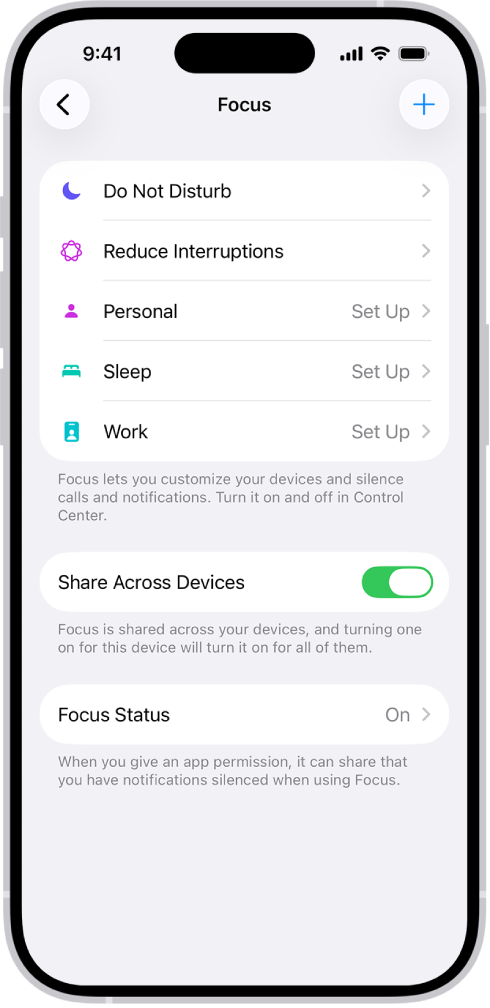
Without the physical silent switch, you need strategic vibration configurations for meetings, movies, and other quiet spaces. Create a “Meeting Mode” Focus that allows vibrations only for priority contacts:
- Go to Settings → Focus → Do Not Disturb
- Set “Allow Calls From” to Favorites only
- Assign a subtle custom vibration specifically for Favorites
- Enable “Repeated Calls” to ensure true emergencies get through
For theater visits, combine Action button silent mode with keyboard haptics disabled in Sounds & Haptics settings. Reduce vibration intensity through Accessibility → Touch to create minimal disturbance while maintaining essential notification awareness—critical since you can’t just flip a silent switch anymore.
Maintain Your iPhone 16 Vibration System Effectively
Keep your vibration settings functioning perfectly with these monthly maintenance routines:
- Weekly: Test Action button responsiveness and verify custom patterns remain assigned to contacts
- Bi-weekly: Clean around the Action button with a soft microfiber cloth to prevent debris interference
- Monthly: Review and update contact-specific vibration patterns as your priorities change
Battery Impact Note: Extensive vibration use significantly drains battery life. Monitor your usage in Settings → Battery if you notice faster depletion—especially important since the Action button’s haptic feedback consumes additional power compared to the old silent switch mechanism.
Mastering iPhone 16 vibration settings transforms how you interact with your device in quiet spaces. Start by configuring your Action button for silent mode, then layer in custom patterns for your most critical contacts. Without the traditional silent switch, these vibration customizations become your primary method for discreet notification management. Remember: personalized, subtle vibrations provide awareness without disruption—making you appear more present in meetings and more respectful in quiet environments. Your iPhone 16’s vibration system, once mastered, offers more precise control than the old silent switch ever did.


