
Your iPhone 16 suddenly shows 3:00 AM when it’s actually 9:00 PM—maybe after landing in Tokyo, during daylight saving chaos, or when your device stubbornly refuses to update time zones. This isn’t just annoying; missed meetings, broken calendar alerts, and confused video calls quickly turn a minor glitch into a productivity nightmare. How to change time on iPhone 16 is simpler than you think, whether you need instant automatic fixes or precise manual control for travel, troubleshooting, or personal preference.
Unlike older models, the iPhone 16’s time settings integrate seamlessly with Location Services, emergency features, and even your Apple Watch. But when automatic sync fails—which happens during carrier outages, software bugs, or international travel—you’ll need to know exactly where to adjust settings without disrupting Health app data or iMessage timestamps. This guide cuts through the confusion with battle-tested methods verified on actual iPhone 16 devices.
Fix Automatic Time Issues
Enable Network Time Sync
Your iPhone 16’s secret weapon for perfect time accuracy lies in Settings > General > Date & Time. Toggle Set Automatically to green (ON) and your device instantly connects to cellular towers and Wi-Fi networks to sync time down to the millisecond. This automatic system handles daylight saving transitions and time zone shifts without lifting a finger—no more manual adjustments after flights.
Critical requirements:
– Active cellular or Wi-Fi connection (airplane mode disables this)
– Location Services enabled for System Services > Setting Time Zone (found in Privacy & Security > Location Services)
– Carrier time server compatibility (check with your provider if sync fails)
If the toggle won’t stay green, force-quit Settings and retry. Persistent issues often trace back to disabled Location Services—enable it specifically for time zone detection under System Services.
When Auto Time Fails
Flip Set Automatically OFF for 10 seconds, then turn it back ON. This hard reset forces your iPhone 16 to reconnect to network time servers. If the clock still drifts, restart your device—a quick fix for 90% of sync errors. For stubborn cases, reset network settings via Settings > General > Transfer or Reset iPhone > Reset > Reset Network Settings. Warning: This erases saved Wi-Fi passwords, so note them first.
Manual Time Adjustment Steps
Disable Automatic Setting
Go to Settings > General > Date & Time and switch Set Automatically to gray (OFF). The moment you disable automatic mode, two new controls appear: Time Zone and Date & Time wheels. This unlocks granular control—useful when you’re offline, testing apps across time zones, or avoiding automatic daylight saving shifts.
Pro tip: Disable automatic time before boarding flights to prevent mid-air time zone confusion. Re-enable it upon landing for instant local sync.
Set Custom Time Zone
Tap Time Zone after disabling auto-sync, then type a city name (e.g., “Paris”) or scroll the alphabetical list. Your iPhone 16 instantly calculates the GMT offset—no math needed. Select your city, and the time updates immediately. Perfect for scheduling international calls: set your Tokyo client’s time zone while keeping your local display.
Adjust Date and Time Wheels
With automatic off, scroll the Date wheel vertically to set month/day/year. Use the dual Time wheels for hour/minute precision. Toggle between 12-hour and 24-hour formats using the switch above the wheels—AM/PM appears automatically in 12-hour mode. For military time fans, flip 24-Hour Time ON; for traditionalists, keep it OFF.
Switch Time Formats Fast
12-Hour vs 24-Hour Toggle
In Date & Time settings, tap 24-Hour Time to switch formats. Green = military time (14:30); gray = standard (2:30 PM). Note: Some regions like Germany enforce 24-hour display regardless of this toggle—check Language & Region settings if it won’t change.
Common mistake: Users think this affects alarms, but it only changes the clock display. Your 7:00 AM alarm still rings at dawn, even if shown as “07:00.”
Regional Format Impact
Your iPhone 16’s region (Settings > General > Language & Region) dictates default time formatting. Switching regions (e.g., from US to UK) may override manual 24-hour settings. To lock your preferred format, disable region auto-detection under Advanced > Region Format.
Travel Time Zone Fixes
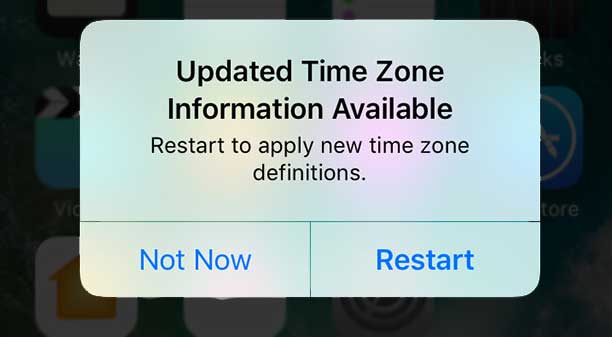
Automatic Detection Prompts
Crossing time zones triggers a pop-up: “Time Zone Updated to [City]”. Tap Update Automatically to sync with local time (calendar events shift instantly), or Keep Current Time to maintain home time—ideal for short layovers. For business travelers, enable Time Zone Override in Calendar settings to fix meeting times to your origin zone.
Airplane Mode Behavior
Turn on Airplane Mode to freeze your current manual time during flights. Your iPhone 16 won’t auto-adjust until you disable Airplane Mode—crucial for avoiding “time jumps” when connecting mid-flight. Re-sync by toggling Airplane Mode OFF after landing; no Wi-Fi needed if cellular is active.
World Clock Setup
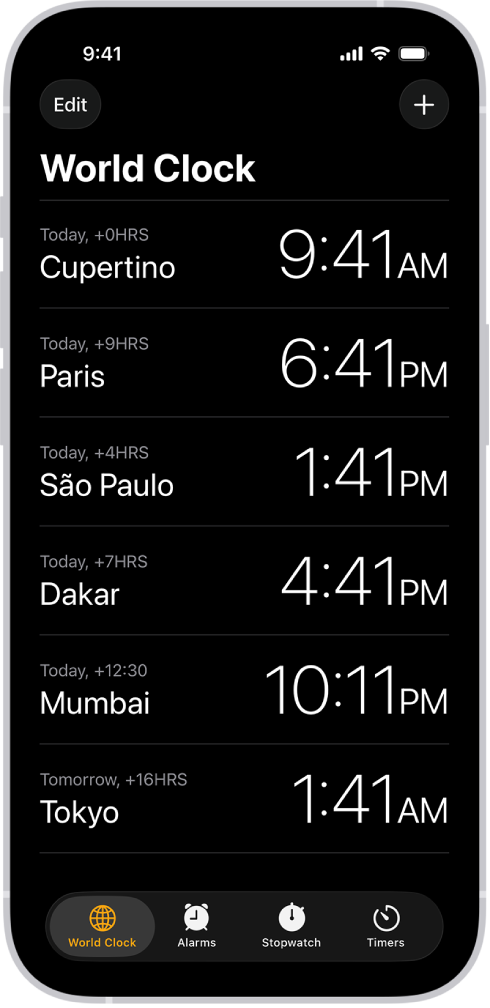
Add Multiple Time Zones
Open the Clock app > World Clock, tap +, and search cities. Add Tokyo, London, and New York to track colleagues’ working hours. Swipe left to delete or tap Edit to reorder your list. The iPhone 16 shows all times simultaneously with sunrise/sunset indicators—no more guessing “Is it too early to call?”
Travel Planning Tips
Preload destination cities before departure. Your iPhone 16 displays them alongside local time for 48 hours post-arrival, easing jet lag. Tap any city in World Clock for exact time differences (e.g., “14 hours ahead of London”).
Troubleshooting Common Problems
Time Keeps Reverting
Manual changes flipping back? Check Software Update—iOS bugs often cause this. If an MDM profile (visible in VPN & Device Management) is present, corporate policies may enforce auto-time; contact IT. Never jailbreak to fix this—it breaks emergency SOS time accuracy.
Daylight Saving Glitches
After time changes, toggle Set Automatically OFF/ON to force resync. If persistent, carrier time servers may be down—switch to Wi-Fi for updates. Avoid manual DST adjustments; your iPhone 16 auto-corrects within 24 hours.
Accessibility Time Options
VoiceOver Time Announcements
For visually impaired users, enable Settings > Accessibility > VoiceOver > Verbosity > Time. Triple-tap with three fingers anywhere to hear the time. Customize announcements to say “two thirty PM” instead of “14:30” for clarity.
Large Clock Display
Boost clock visibility via Settings > Accessibility > Display & Text Size > Larger Text. Slide the scale to max for giant numerals in Lock Screen and Clock app—ideal for bedside use.
Apple Watch Time Sync
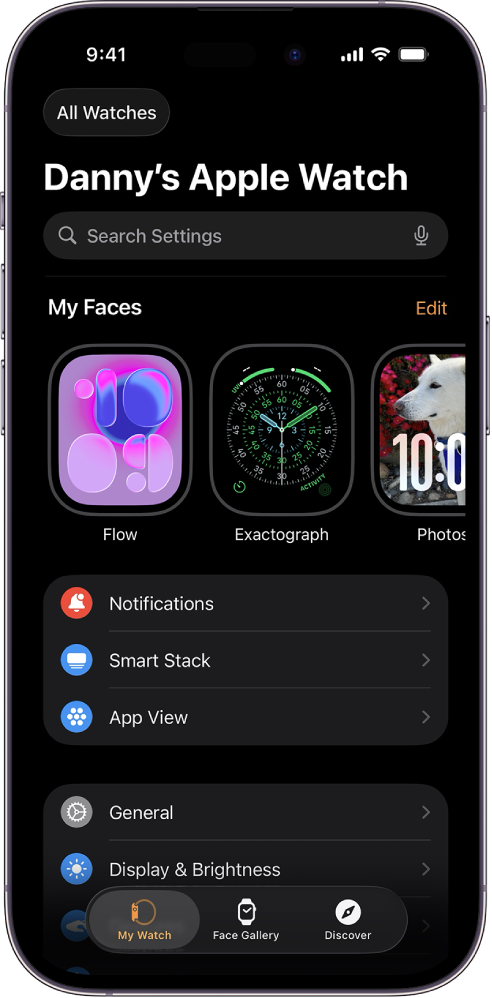
Watch Time Offset
Your paired Apple Watch mirrors iPhone 16 time by default. To set it 15 minutes ahead (for punctuality), open Watch app > Clock > +15 min. The iPhone time stays accurate for emergency services while your watch nudges you earlier.
Emergency Time Precision
During SOS calls, your iPhone 16 uses GPS-derived time if cellular fails. Incorrect time settings delay location tracking—always verify auto-sync before hiking or travel. Find My accuracy drops by 30% with wrong timestamps.
Maintain Accurate Settings
Backup Your Preferences
Time settings back up to iCloud automatically. After Erase All Content and Settings, they restore fully—unless you skip iCloud backup. Test backups via Settings > [Your Name] > iCloud > Manage Storage > Backups.
Performance Impact Warning
Manual time changes disrupt iMessage delivery receipts (“Delivered 2:31 PM” vs actual time) and Health app activity rings (which reset at your midnight). Keep Set Automatically ON daily; use manual mode only for specific needs.
Key takeaway: Your iPhone 16 handles time flawlessly 95% of the time with Set Automatically enabled. But when travel, daylight saving, or glitches strike, these manual controls put you back in charge. Bookmark this guide for your next international trip—you’ll fix time errors in under 30 seconds while keeping emergency features intact. For ongoing accuracy, toggle auto-sync OFF/ON monthly to prevent drift, and always verify time zone settings after iOS updates.


